Author Archives: Bernie

Resize and then Import a graphic into the Work Canvas

Bitmap2LCD is a tool for programming small Graphic LCDs in embedded systems.

Resize and then Import a graphic into the Work Canvas

Bitmap2LCD Resize Preview

Outdated information :

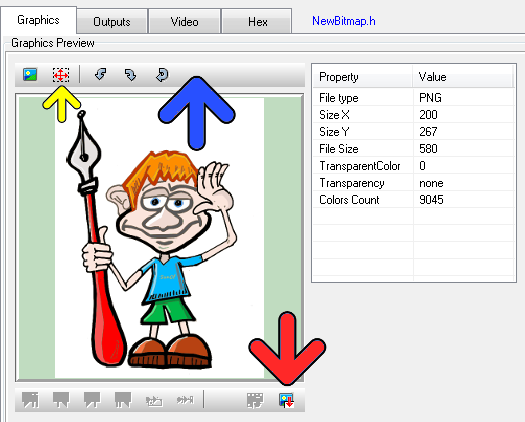
Since v2.6B, there’s a new toolbar at the top of the graphic (blue arrow)

When importing a graphic file, you can choose to resize the graphic size in the graphic preview (yellow arrow) or turn the graphic or reload the original graphic.

If the graphic is much larger in size than the work canvas, you will see a “blue frame” in the preview, frame which shows the size of the Work Canvas. You can move this area to the graphic detail you wish to import. In this case, the later message box resize to fit should be answered with NO.

When you want to resize the graphic, click on the selection button (yellow button) and then define the size on the image with mouse. The preview will be resized.

When ready import the graphic (red arrow) to the floating selection layer above the work canvas. When ready paste the floating selection layer.

Bitmap2LCD : The Configuration Settings Window

Bitmap2LCD is a tool for programming small Graphic LCDs in embedded systems.

OBSOLETE Article : For older versions

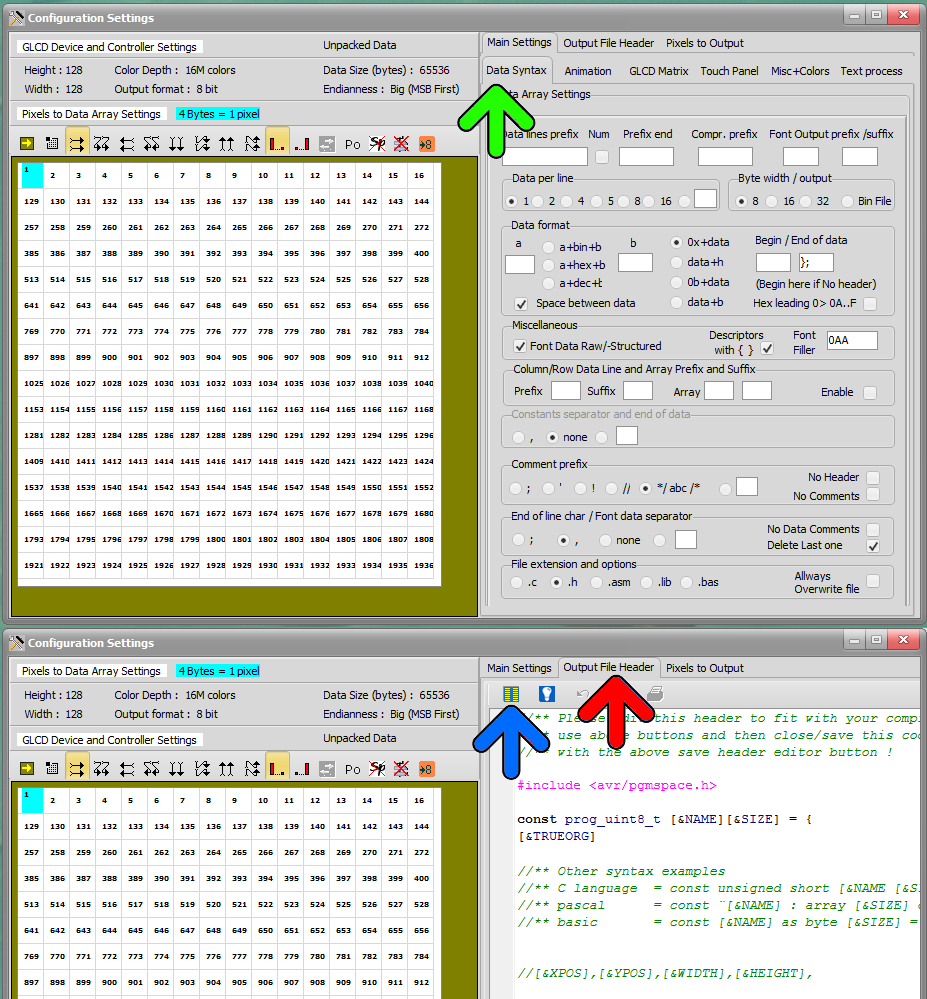
All the configuration settings of the Bitmap2LCD tool have been reorganized and grouped in one single window :

The main settings, the output file header syntax settings, the pixel to data array orientation setting , the optional postprocessing and a new user friendly pixel to data array organisation display.
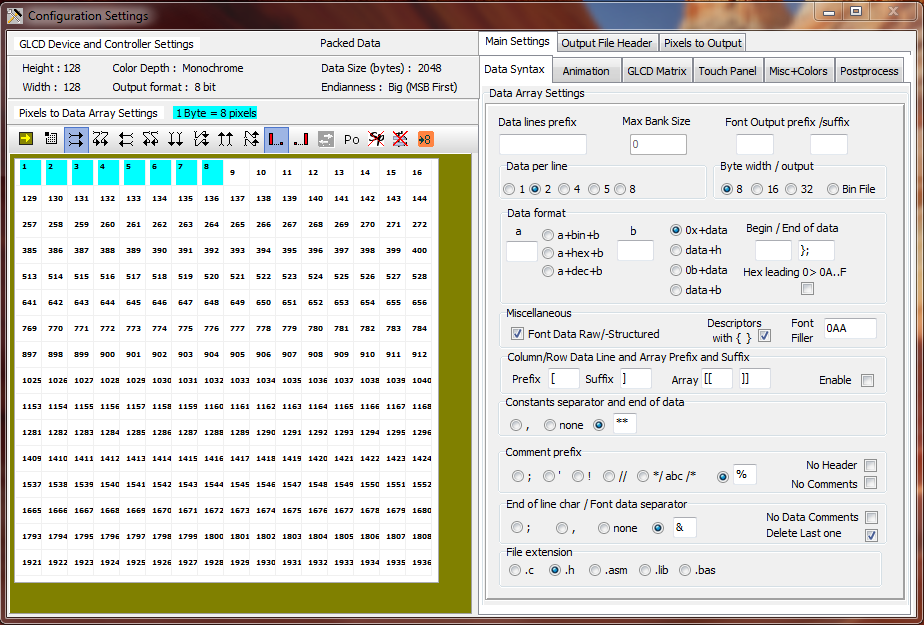
 

Bitmap2LCD Configuration Settings


Let’s see how to configure the GLCD data output settings :

The generated data array file can be configured to meet the syntax requests of your compiler or assembler. There are many possible settings, to make it possible to match the tool with most of the compilers of the market.

At first, you define the table data settings

  • Data Width format. ( 8,16 or 32 bits data)
  • Binary, Hex or decimal format.
  • Syntax of Data Byte/Word (make it compatible with your favorite compiler, assembler)
  • Type of file (extension)


bitmap2lcd output settings


As next, you define the header syntax ( output file header tab)

>>  To edit file header blue arrow )

  • Click on the edit button and the header script is loaded into the editor. Modify it to meet your requirements.
  • When ready, quit the header editor by clicking the same button.
  • Find more about the header syntax at the end of this article.

As next, you define the way the data arrays are arranged to correctly fit in the DDRAM of your LCD controller. ( Data orientation ) These settings must be compatible with the LCD display functions in the GLCD Library you use in your project.

  • The origin corner X0,Y0
  • Data direction (The direction in which the pixels slices are taken from the work canvas and converted to GLCD data, for example in slices or in full canvas height or full canvas width. A slice is 8 pixels in monochrome mode and 2 pixels in 4bpp grayscale mode)
  • The Endianness (Most Significant Bit is first or last)
  • Special settings

More about File Header syntax ( output file header tab )

The script components [&***] can be included only once and will be replaced by the data or value when the data array is generated. Not needed script components can be erased.

[&NAME]

The [$NAME] and the image size and position are optional and can be placed optionally anywhere in the header.

[&SIZE]

Same for Size of Data

[&TRUEORG]

This is the script component if present in the file, to indicate that you want to have the XPOS and YPOS origins of a reduced dynamic table of constants ( a part of the display you want to change ) given from the X0,Y0 corner you selected in the table translation manager window.

[&XPOS]

[&YPOS]

[&WIDTH]

[&HEIGHT]

The corner position on the Work Canvas and the size of the converted graphic area can be exported into the file.

There are additional script components for font generation and data compression.
GLCD Data array output options

Bitmap2LCD is a tool for programming small Graphic LCDs in embedded systems.

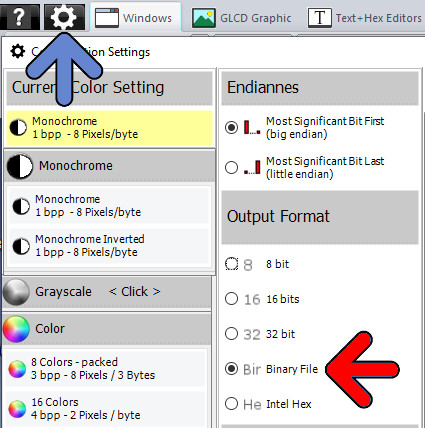
Output of the GLCD data array in a binary file
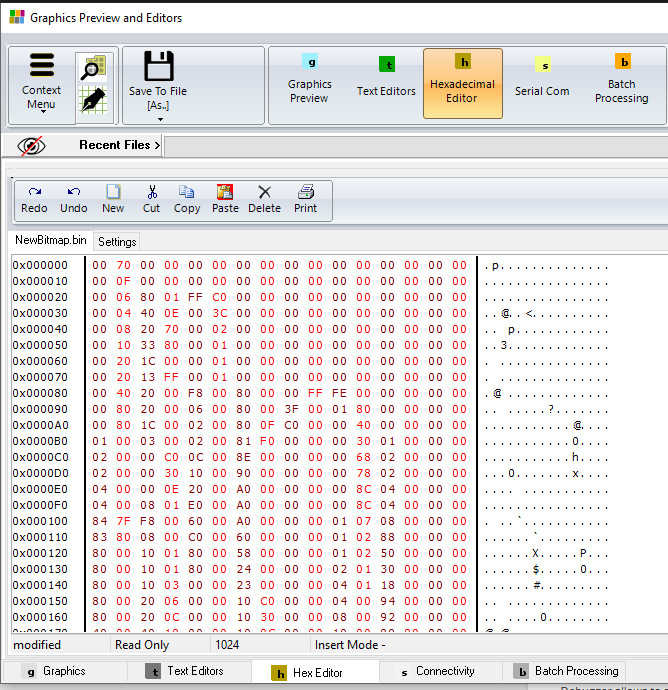
The converter data output feeds a built in hexadecimal editor and is saved to disk in a binary file (*.hex)

Output of the GLCD data array in a INTEL Hex format

Details about Intel Hex Data Output

Output of the GLCD data array in a text file for the compiler or assembler, format 8, 16 or 32 bit data

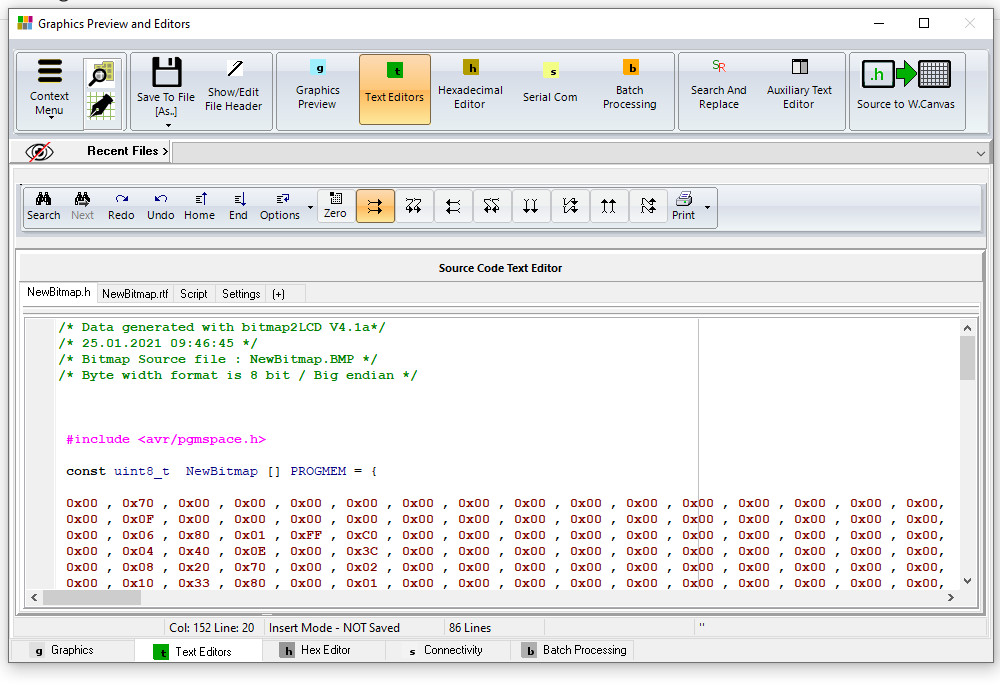
The converter data output feeds a built in text editor and can saved to disk in a text file
( *.c , *.h , *.asm , “.lib etc..)

Next to the data file, a rich text file (*.rtf) which contains all GLCD conversion parameters is written to disk, in the user defined “Documents folder”.

Grayscale GLCD controller support : 4,16 and 32 gray levels

Bitmap2LCD is a tool for programming small Graphic LCDs in embedded systems.

Since V2.3 and upwards, Bitmap2LCD supports the 4,16 and 32 level grayscale controllers. ( Newly implemented are the 4 and 32 gray levels capability )

Color images and pictures can be imported and converted to 4, 16 and 32 gray levels into the work canvas. The software tool then generates the pixel data array in the selected arrangment, 2, 4 or 5 bits per pixel.

Here’s a list of grayscale LCD controllers, featuring 4, 16 and 32 gray levels.


Grayscale LCD Controllers

4 Gray Levels (2bpp)


S6B0741 128×129 Samsung


KS0741 128×129 Samsung


HT1647 64×16 Holtek


ST7541 128×129 Sitronix


ST7571 128×129 Sitronix


ST7586S 384×160 Sitronix


UPD16686 128×128 NEC


UPD16498 128×128 NEC


UPD16488A 128×92 NEC


HD66750 128×128 Hitachi


HD66421 160×100 Hitachi


EM65100 69 x101 Elan Microelectronics Corp


NJU6680 128×128 New Japan Radio


NJU6682 160×132 New Japan Radio


RA8806 320X240 Raio Technology


16 Gray Levels (4bpp)


EM65101 128×160 Elan Microelectronics Corp


SSD1322 480×120 Solomon Systech


SSD1325 128×80 Solomon Systech


SSD1326 256×32 Solomon Systech


SSD1327 128×128 Solomon Systech


32 Gray Levels (5bpp)


ST7529 255×160 Sitronix


GLCD Data Output Settings in Bitmap2LCD

Bitmap2LCD is a tool for programming small Graphic LCDs in embedded systems.

This article is only for releases before V2.5

Let’s look how to configure the GLCD data output settings :

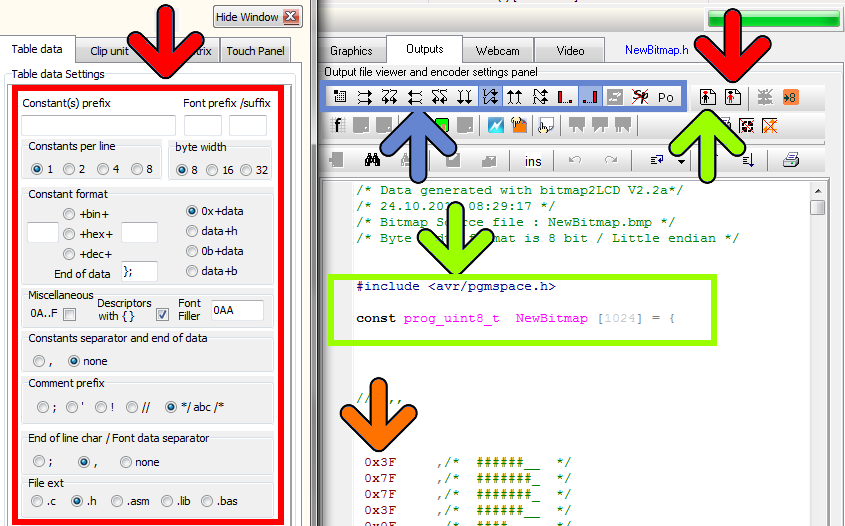
The generated data array file (orange arrow, in the picture below) can be configured to meet the syntax requests of your compiler or assembler. There are many possible settings, to make it possible to match the tool with most of the compilers of the market.

At first, you define the table data settings (red arrow)

  • Data Width format. ( 8,16 or 32 bits data)
  • Binary, Hex or decimal format.
  • Syntax of Data Byte/Word (make it compatible with your favorite compiler, assembler)
  • Type of file (extension)

As next, you define the header syntax (green arrow)

  • Click on the button and the header script is loaded into the editor. Modify it to meet your requirements.
  • When ready, quit the header editor by clicking the same button (green arrow at the right) or the quit button. (script is auto-saved)
  • Find more about the header syntax at the end of this article.


As next, you define the way the data arrays are arranged to correctly fit in the DDRAM of your LCD controller. These settings must be compatible with the LCD display functions in the GLCD Library you use in your project (blue arrow)

  • The origin corner X0,Y0
  • Data direction (The direction in which the pixels slices are taken from the work canvas and converted to GLCD data, for example in slices or in full canvas height or full canvas width. A slice is 8 pixels in monochrome mode and 2 pixels in 4bpp grayscale mode)
  • The Endianness (Most Significant Bit is first or last)
  • Special settings


More about File Header syntax (green arrow)

The script components [&***] can be included only once and will be replaced by the data or value when the data array is generated. Not needed script components can be erased.

[&NAME]

The [$NAME] and the image size and position are optional and can be placed optionally anywhere in the header.

[&SIZE]

Same for Size of Data

[&TRUEORG]

This is the script component if present in the file, to indicate that you want to have the XPOS and YPOS origins of a reduced dynamic table of constants ( a part of the display you want to change ) given from the X0,Y0 corner you selected in the table translation manager window.

[&XPOS]

[&YPOS]

[&WIDTH]

[&HEIGHT]

The corner position on the Work Canvas and the size of the converted graphic area can be exported into the file.

There are additional script components for font generation and data compression.
 

An example of an image import and resize in Bitmap2LCD

Bitmap2LCD is a tool for programming small Graphic LCDs in embedded systems.

Let’s see an example of an image import and resize in Bitmap2LCD

  • To import an image, click on the image filename inside the file explorer of Bitmap2LCD
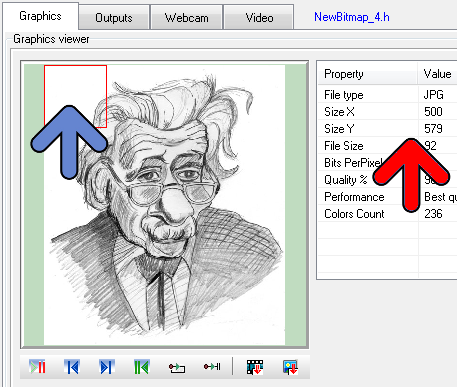
  • If the picture size is bigger as the Work Canvas, ( in this example a 500 x 579 pixels image – red arrow – and a 128 x 128 pixels Work Canvas ) a red frame in a proportional size of the canvas appears in the image preview (blue arrow)
  • Move the mouse inside this red frame in the image preview (blue arrow), and move the frame to the area you would like to import.
  • When ready, click the import image button (the button at the right side below the preview)

  • In the “Resize to fit ?”pop-up message, choose  = NO
  • In this example, Bitmap2LCD converts the 236 “colors” picture to the 16 gray levels for the target Graphic LCD

  •  If needed, move the selected area inside the canvas (click & move with mouse)
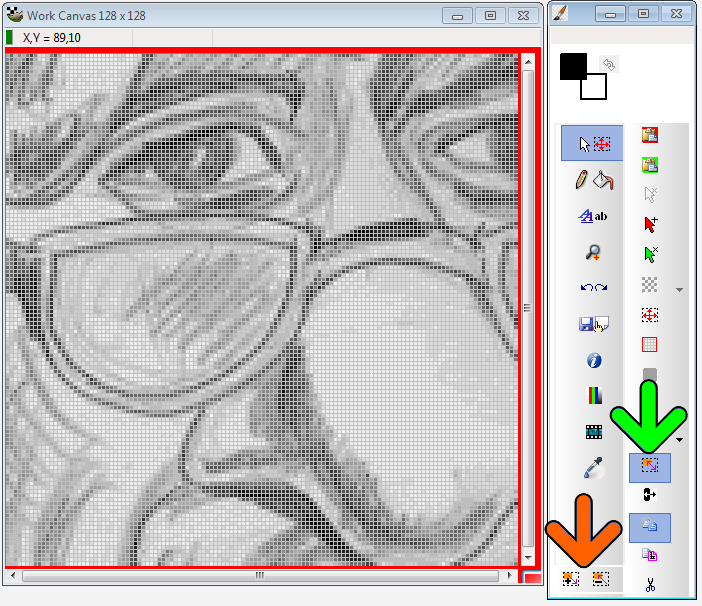
  • If you want to adjust the size of the image import, click the resize selection button (green arrow)
  • Then use the mouse wheel or the resize area buttons to resize the import (orange arrow)
  • At the end, Paste the selection (Paste Button or Return Key)

Create Segmented Charsets for GLCD with Bitmap2LCD

Bitmap2LCD is a tool for programming small Graphic LCDs in embedded systems.

Create Segmented Charsets for GLCD with Bitmap2LCD

Obsolete, not available on current SW versions

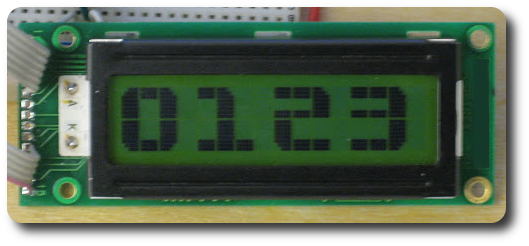
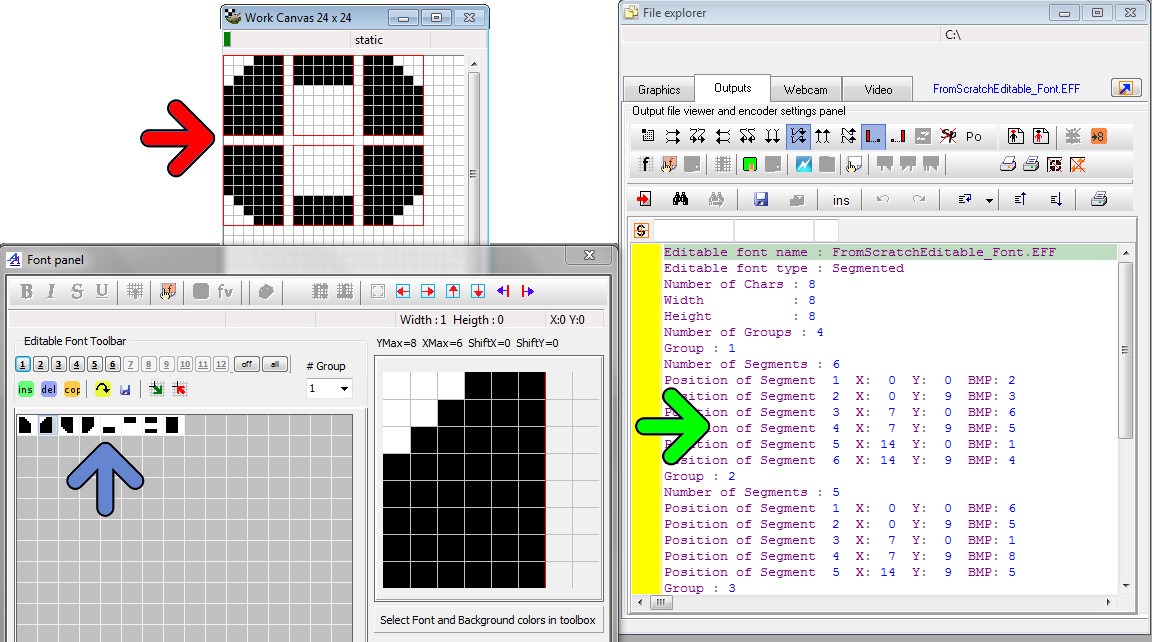
Since V2.2, in the GLCD Font Editor Component of Bitmap2LCD , a feature makes it possible to create segmented fonts, a set of characters that are similar to the 4 numbers displayed on the LCD module in the picture below.

A segmented character is made of an assembly of smaller graphic segments (in this example 6 segments for the O) . These segments being present more than only one time in the different characters of the font.

Now let’s see how this feature is implemented in bitmap2LCD  :

  • View of the char group #1 in the Work canvas (red arrow) The word “group” means an assembly of segments or small graphic elements.
  • The 8 segments needed for the whole charset in the Font Editor Window (blue arrow)
  • The Segment Font Script for this font. This file contains for each character (group) the X and Y positions of all graphic elements and their associated segment bitmap.


Description of the GLCD Font Editor in Bitmap2LCD

Bitmap2LCD is a tool for programming small Graphic LCDs in embedded systems.

Description of the GLCD font editor in Bitmap2LCD (since V2.2)

Standard Edition

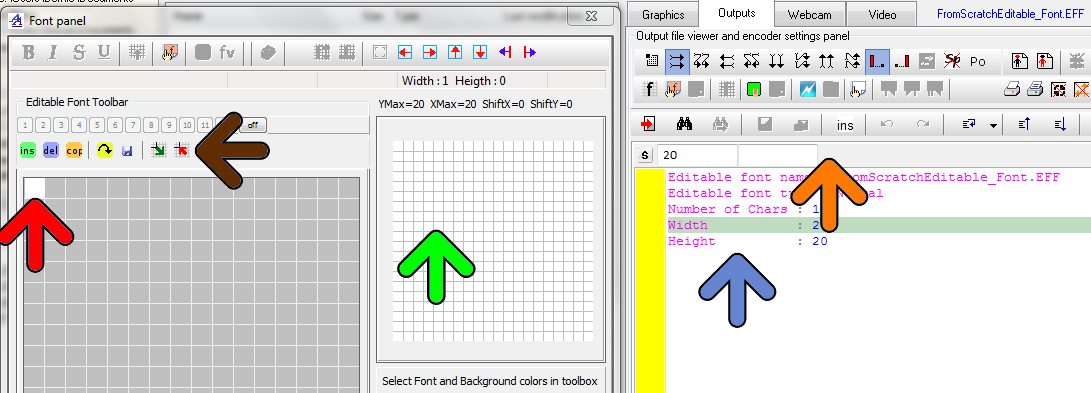
The example below shows the begin of the creating of an Editable font from scratch

On the font panel window at the left :

  • There is one single new Char is in the font grid (red arrow), all pixels are white
  • The font editor toolbar (brown arrow) Buttons: insert new char or paste a char, delete a char, copy a char,export to work canvas,import from work canvas, save font…
  • Above the Font Editor toolbar, the segmented font viewer buttons to hide/show the different Char segments (up to 12 segments)
  • The character displayer and pixels editor. (green arrow) For complicated Char edits, the Char can be exported into the work canvas, and re-imported after modification.

On the Outputs panel window at the right :

  • The Editable Font Script in the editor (blue arrow) , in the GLCD Font Editor mode, the editor gutter becomes yellow.
  • The Editable Font Script editor toolbar  (orange arrow), the values in the Font Script can only be modified in the edits there. It depends where the cursor is located in the script. The Normal Font / Segment Font switch is located on this toolbar too.

The GLCD Font Editor in Bitmap2LCD

Bitmap2LCD is a tool for programming small Graphic LCDs in embedded systems.

The GLCD Font Editor in Bitmap2LCD

Standard Edition

Since Standard Edition V2.2 and upwards, Bitmap2LCD features a GLCD font editor

The already before existing font script component, is only based on imports of characters out of  the installed Windows system fonts, with no possibility to edit the pixels.

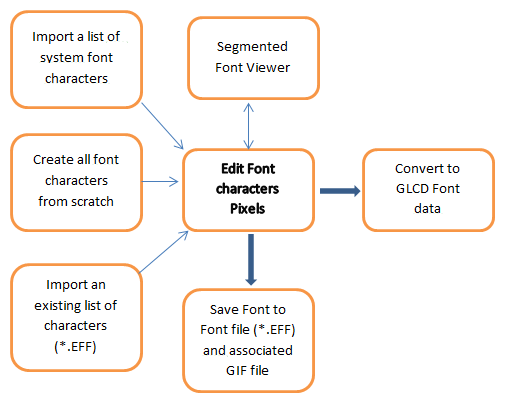
The new GLCD font editor feature gives this capacity of editing the fonts and/or to create new characters and icons.

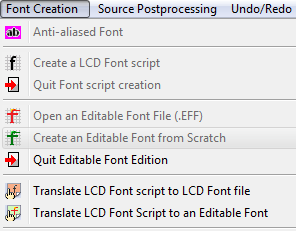
The GLCD font editor component is called “Editable Font ” and the associated functions can be found in the main menu, see below.

  • Open an existing Editable Font File (*.EFF)
  • Create an Editable font from  scratch
  • Quit the Editable Font Edition Mode

The GLCD font editor possibilities are shown below

[ Editable Fonts : up to 256 colors ]

An Editable Font file created with Bitmap2LCD, is saved in a *.EFF file with his associated GIF file, all single characters bitmaps being saved in the frames of a GIF animation. The GIF becomes a sort of catalogue of images.

The Editable font GIF file can also be displayed in the GIF file reader , like a normal animation. The *.EFF file (Editable Font File) is just a script witch contains additional informations.

When opening an editable Font (*.EFF) , by clicking on it in the file explorer, the associated GIF companion file is opened automatically.

Export a part of a bitmap to GLCD data with Bitmap2LCD

Export a part of a bitmap to GLCD data with Bitmap2LCD

Bitmap2LCD is a tool for programming small Graphic LCDs in embedded systems.

Update => V3.7c

With bitmap2LCD,  you can easily convert a part of an image / picture to hex data for your Graphic LCD Display (partial conversion)

bitmap2lcd-export-selected-area_1

Export Selected Area button (in the main Menu)

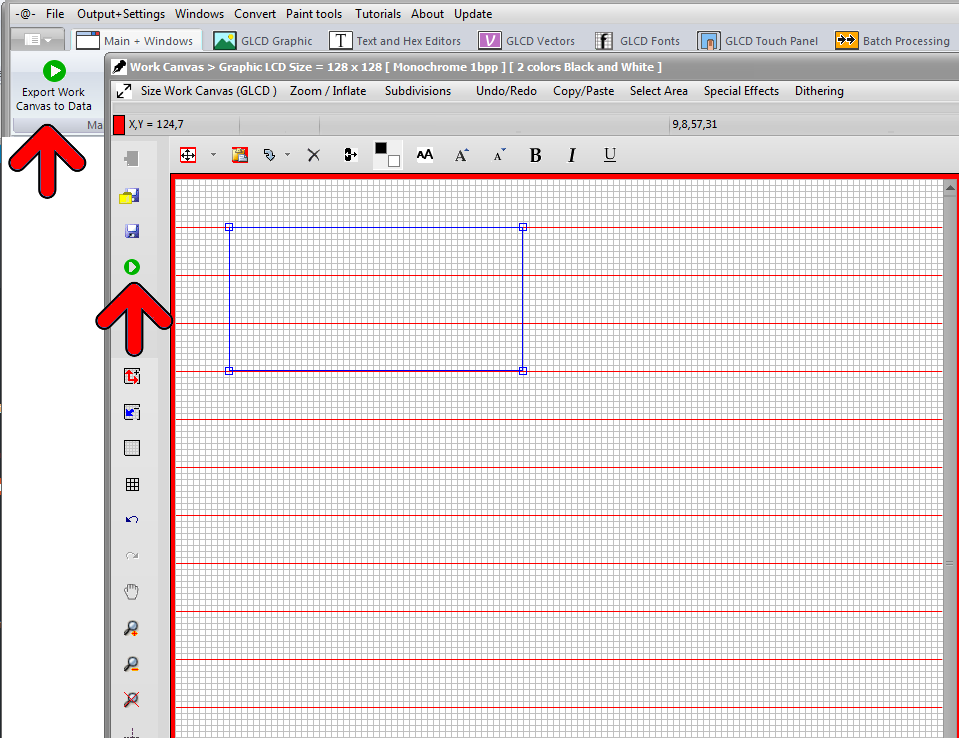
To achieve this partial conversion, use the menu item Export Selected Area of to Data or follow this tutorial…

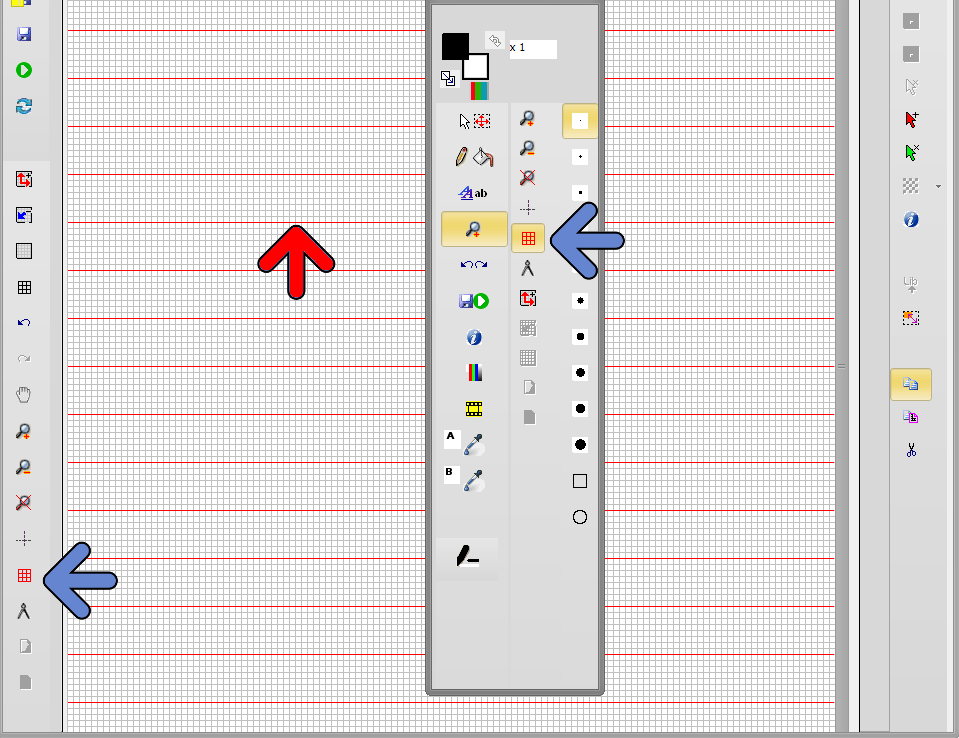
  • Enable the paging scheme display (one of the blue arrows)
  • Red horizontal or vertical lines will then appear in the Work Canvas (red arrow). These lines depend of the selected paging scheme  (horizontal or vertical) and of the pixel data depth ( monochrome , grayscale… ) In this monochrome example, we have 8 pixels / data byte, therefore a gap 8 pixels between the lines.
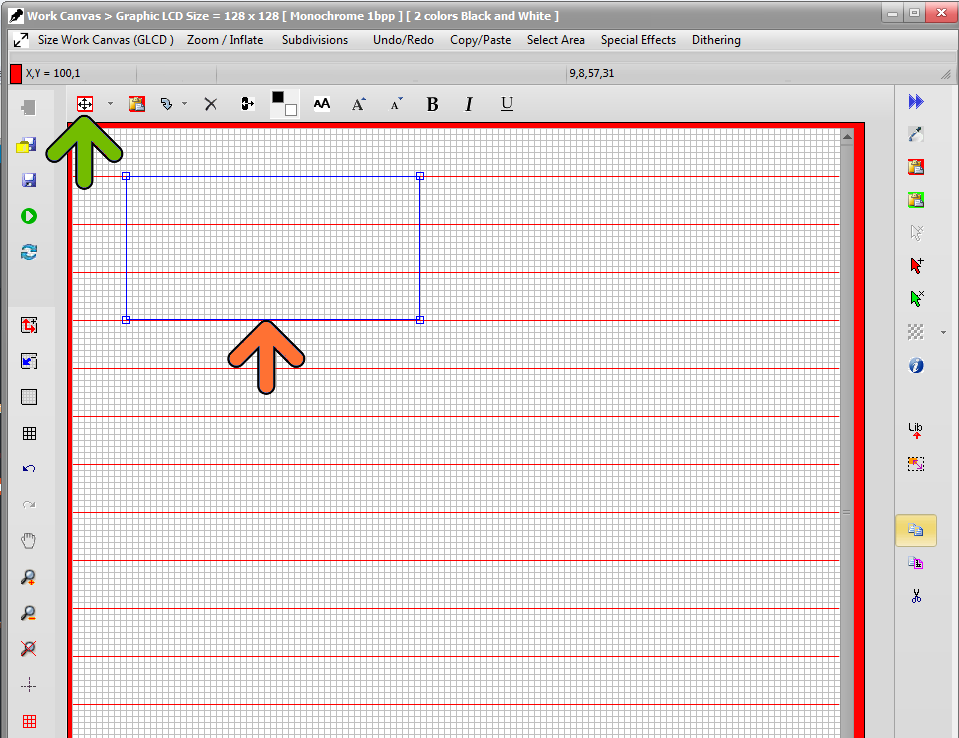
  • These lines will also act as area delimiters / selection magnets when you later select the area to convert.


bitmap2lcd-export-partial

With the selection tool (green arrow) , and with the mouse clicked in the Work Canvas, define the area frame (orange arrow)

bitmap2lcd-export-partial_2

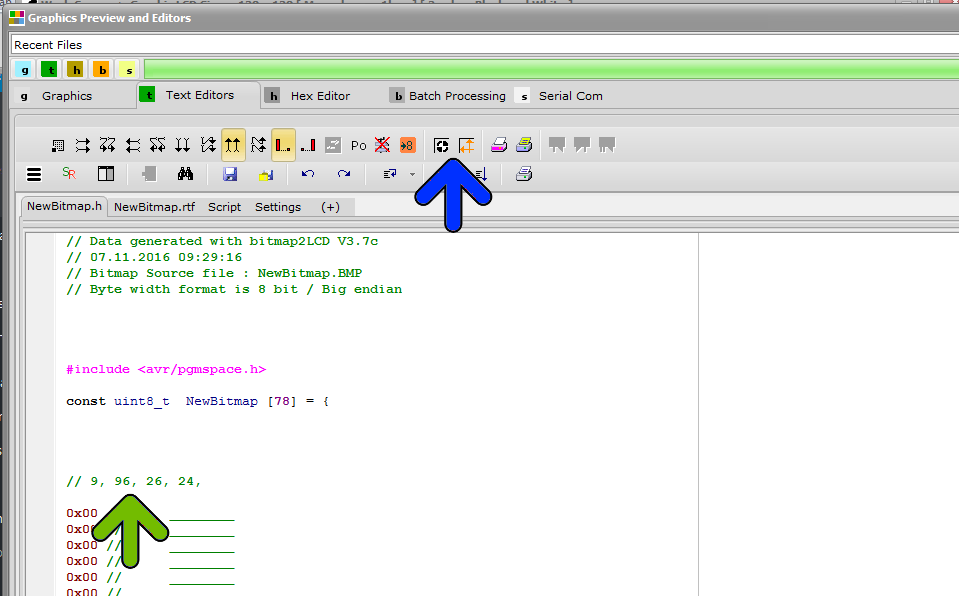
  •  If you want to see or include somewhere the X and Y corner position, the width and the height of the area frame (orange arrow) inside the code (green arrow) set the buttons (blue arrow).  You can also specify the use of these 4 informations within the header include editor.

bitmap2lcd-export-partial_4

  • Start conversion (red arrow)


bitmap2lcd-export-partial_3