Author Archives: Bernie

Bitmap2LCD : Activate a Processing Batch

Bitmap2LCD is a tool for programming small Graphic LCDs in embedded systems and a programmable text processing tool.

Activate a Processing Batch

1. List the existing batches (blue arrow)

2. Click the selected Processing batch in the list inside the File Explorer

3. The selected Batch Processing Program appears in the editor window

4. Activate the present Text Processing  Batch (red arrow)

5. The activated batch filename appears in the menu (green arrow)

Another way to select a batch is to right-click in the batch list after having selected the wanted batch. In the pop-up menu, there’s an item to do that.

bitmap2lcd-batch-processing-activate


Bitmap2LCD : Text processing on multiple files located in a folder

Bitmap2LCD is a tool for programming small Graphic LCDs in embedded systems and a programmable text processing tool.

Text processing on multiple files located in a folder

From Bitmap2CD Standard Edition V2.8d, a text processing batch can be run on defined multiple files located in a defined folder.

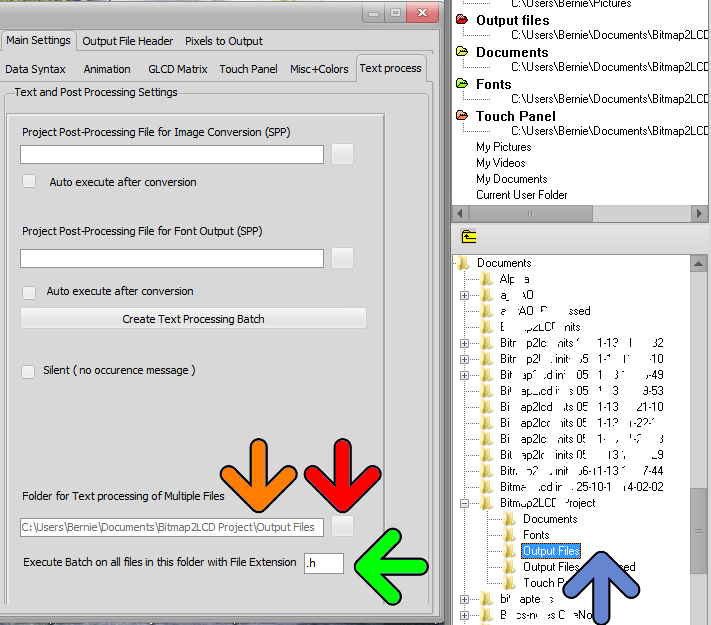
1. In the File Explorer, select the folder where the source files are located  (blue arrow, fig 1)

2. Open the Configuration Settings Panel , click the Text Process tab

3 Click on the Folder Select button (red arrow)

4 The selected folder appears in the field (orange arrow) This field will be saved with the configurations settings when closing the program.

5. Define the file extension, for example : “.txt”  or “.csv”  or “.h”  Only the files with this extension in the folder ( case sensitive ) will be text processed.
Bitmap2CLD Multiple File Text Processing 1

fig 1)

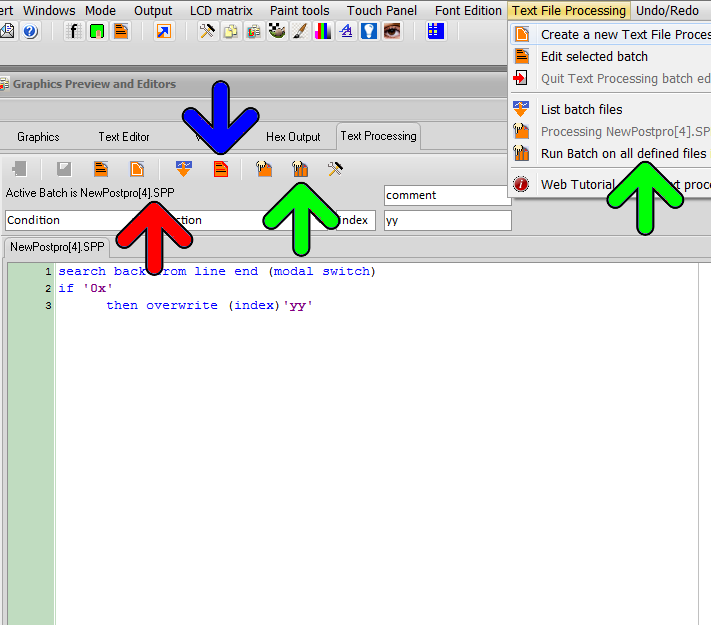
The selected batch (see red arrow fig 2) can be started from the menu or from the text processing panel (green arrows fig2)

If no batch allready activated, list the batch files with the button at the left of blue arrow, choose the batch you want to run in the list and activate it ( blue arrow fig2 )
Bitmap2CLD Multiple File Text Processing 2

fig 2)

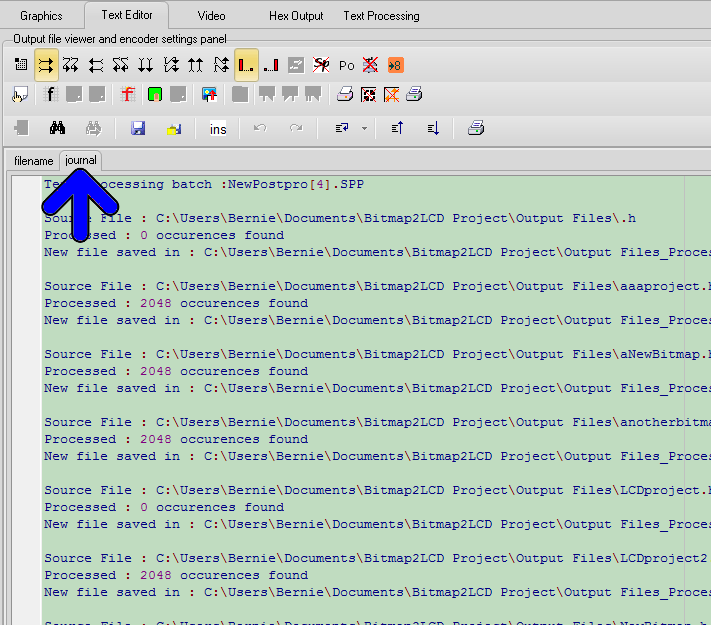
At the end of a Multiple file Text processing run, a journal is displayed (fig 3 below)

It lists the source folder and file, the destination folder and file and the number of Text processing occurences found

The destination folder is the source folder name + _processed

The source files in the source folder are not modified
Bitmap2CLD Multiple File Text Processing 3

fig 3)

Bitmap2LCD Project Roadmap

Bitmap2LCD is a tool for programming small Graphic LCDs in embedded systems and a graphic and text file processing tool

The development roadmap of this software tool will soon be reaching its destination.

But for now, it’s still under development and is still supported !

Project Roadmap


Bitmap2LCD : About the filenames

Bitmap2LCD is a tool for programming small Graphic LCDs in embedded systems.

About the filenames in bitmap2LCD

Basically the filenames in bitmap2LCD are all associated to the Artwork “bitmap” filename.

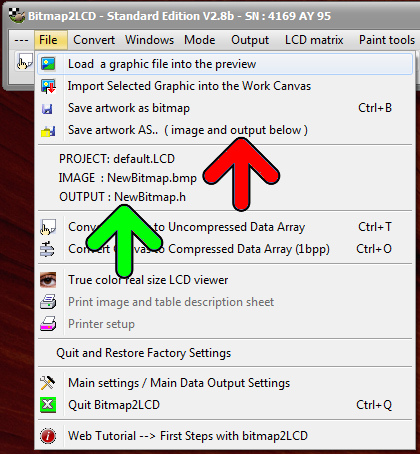
In the “File” main menu, you can see the active project, the bitmap and the data output filenames (green arrow)

OUTPUT : The data output file extension can be selected in the configuration settings panel (Main settings + data syntax tab)

IMAGE : is always a bitmap (.BMP) – or a gif if it’s a GLCD animation project (.GIF) –

Bitmap2lcd About filenames

A touch panel part of an artwork will also have a similar filename.

To save an artwork under a new or different filename, click in the main menu  (red arrow) and define the new “artwork” filename ( a bmp ! ) . (This function is also accessible from the work canvas side buttons )

Newbitmap” is the default artwork name : NewBitmap.bmp and NewBitmap.h


Bitmap2LCD : Hide and Show the Desktop Icons

Bitmap2LCD is a tool for programming small Graphic LCDs in embedded systems.

Hide and Show the Desktop Icons

When using the programming tool with the floating windows style ( instead of the MDi Style – with the Main Form beeing a Background and an optional Wallpaper -) , in other words when the desktop wallpaper becomes the program wallpaper, you can choose to hide / show the destop icons using a button located in the main buttons bar (red arrow)

Bitmap2lcd Show Hide Desktop Icons

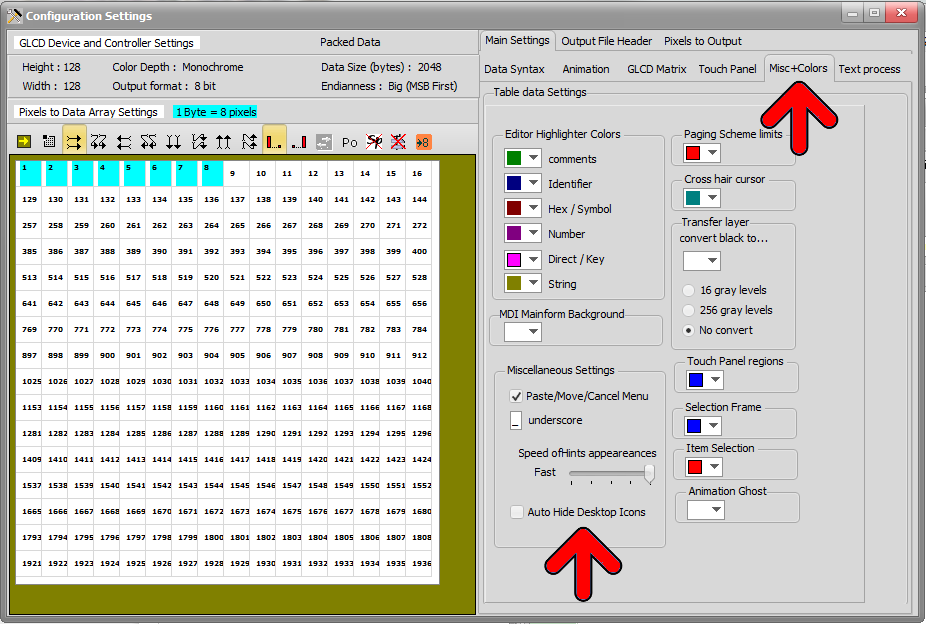
In the Configuration settings, a checkbox can be checked to automatically hide the desktop icons at start and show them again when the program is closed (see red arrows below)

Bitmap2lcd Desktop Icons Config 2

Bitmap2LCD : Sizeable Editor separated from the File Explorer

Bitmap2LCD is a tool for programming small Graphic LCDs in embedded systems.

Sizeable Text Editor and Separate File Explorer

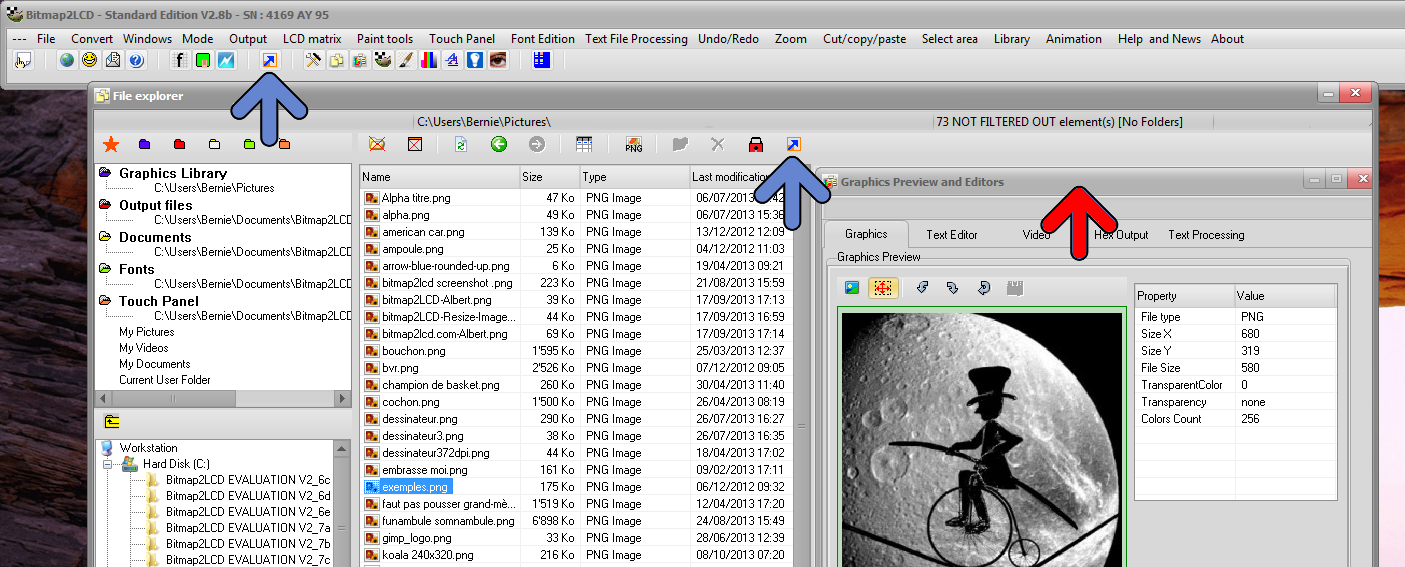
From Version V2.8b, you can split the “File Explorer” and the “Graphics Preview & Editors” (red arrow) into two separate Windows (See button pointed by blue arrows)

Bitmap2lcd Split Editor and Explorer 2

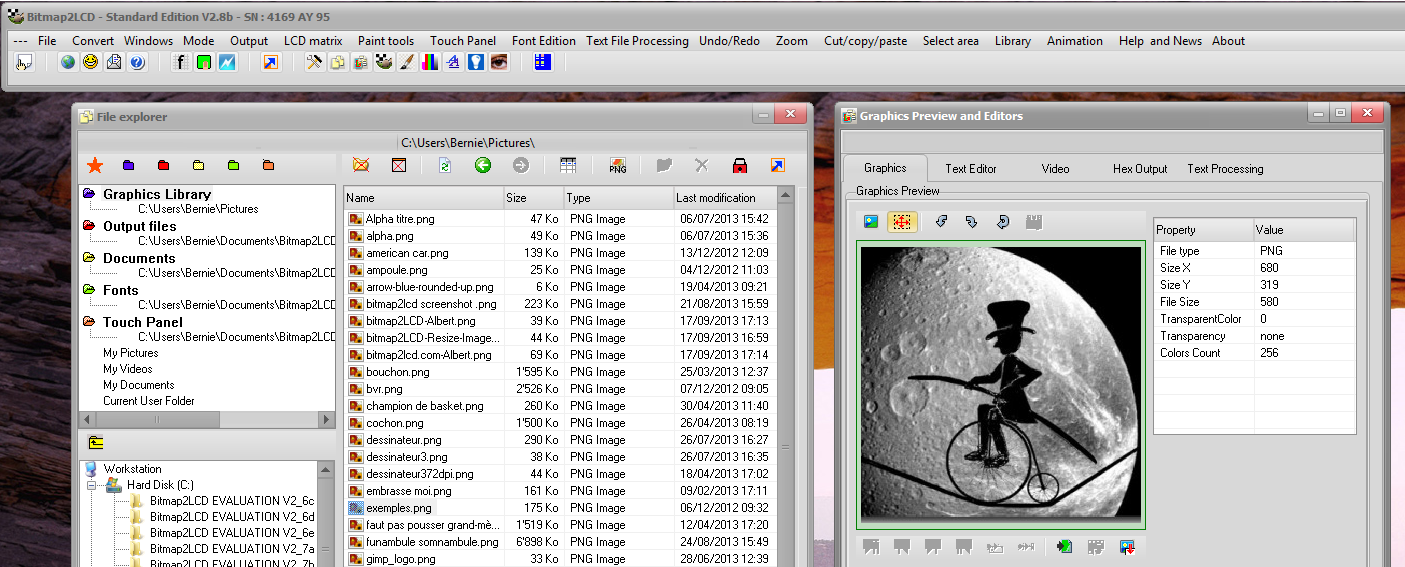
The “Graphics Preview and Editors” Window can then be resized.

Use the same buttons to reunite the windows.

Bitmap2lcd Split Editor and Explorer 1

Bitmap2LCD : Example of moving a group of pixels

Bitmap2LCD is a tool for programming small Graphic LCDs in embedded systems.

Example of moving of a group of pixels

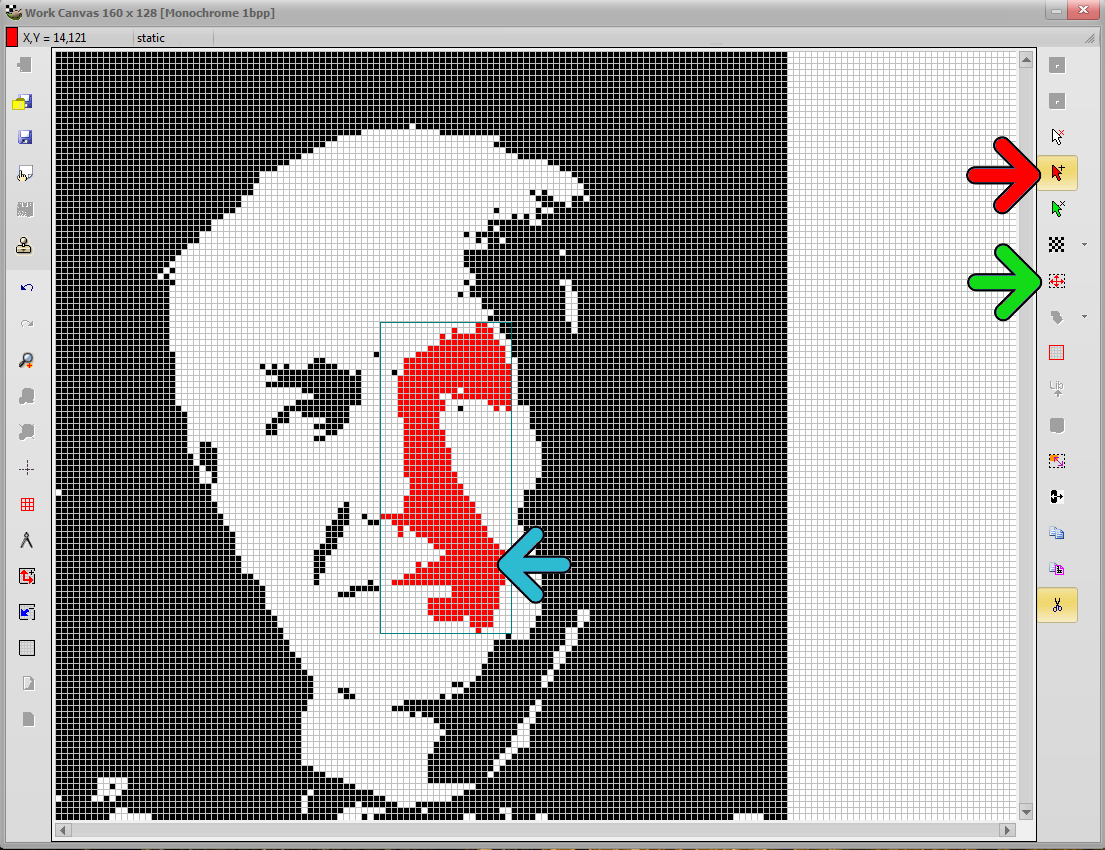
1 . Click Select Contiguous Pixels Button  (red arrow)

2 . Click inside the area of pixels (a group of pixels separated from the others, an island (blue arrow)

–> The seleted group of pixels becomes red

3. Click the Selection Area button (green arrow)

Bitmap2LCD moving Pixels 1

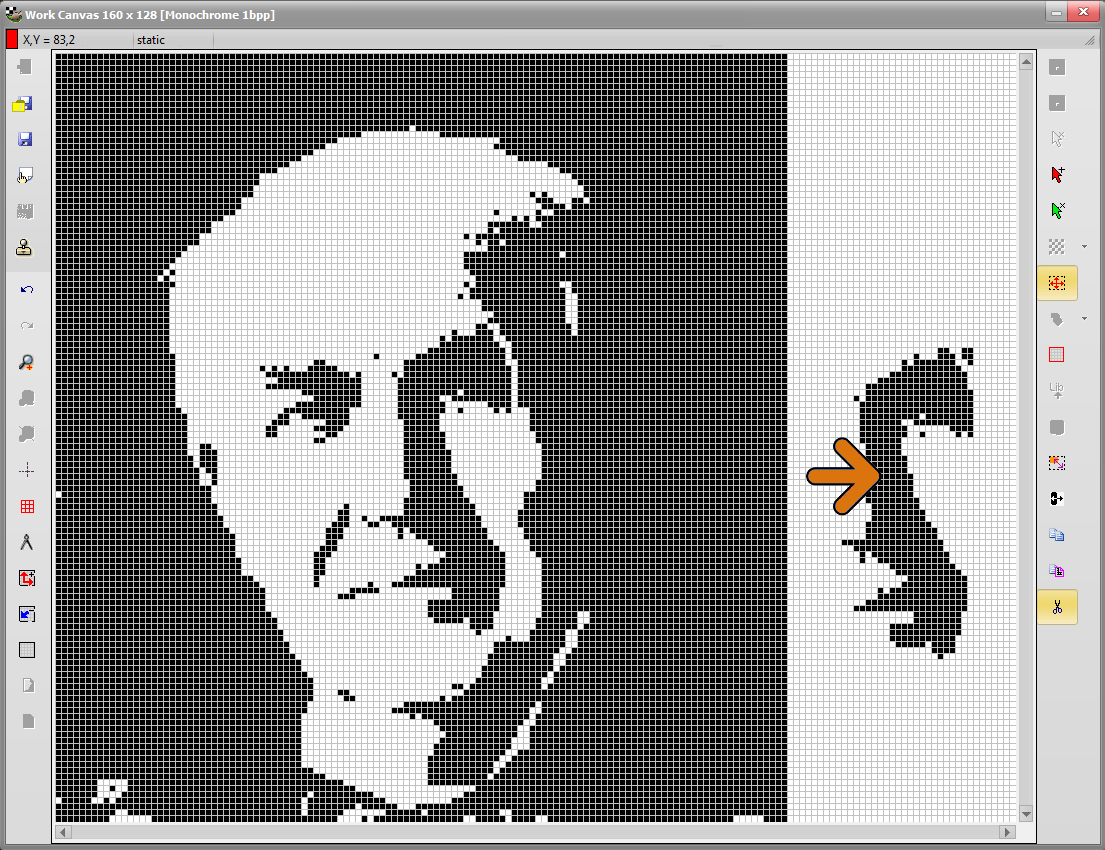
4. Move the mouse cursor inside the selected area (blue arrow) and drag the area to the destination (orange arrow below)

5. Click Paste button

Bitmap2LCD moving Pixels 2

6. To “delete” the moved area, press the escape key ( to clear the addition of pixels to the last selection)  and press the delete key (in this case the background color should be white )

Bitmap2LCD : Replace a color with another in the entire Work Canvas

Bitmap2LCD is a tool for programming small Graphic LCDs in embedded systems.

Replacing a color with another in the entire Work Canvas

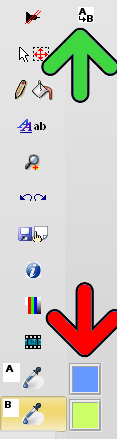
1. Pick Source Color with color picker A inside the work canvas

2. Pick Target Color with Color picker B inside the work Canvas

3. Replace every color A pixel with color B in the Work Canvas (green arrow)

Bitmap2LCD Replacing Colors


Bitmap2lcd : Output of an Array of [ Arrays of Pixel lines ]

Bitmap2LCD is a tool for programming small Graphic LCDs in embedded systems.

Output of an Array of [ Arrays of  Pixel lines ]

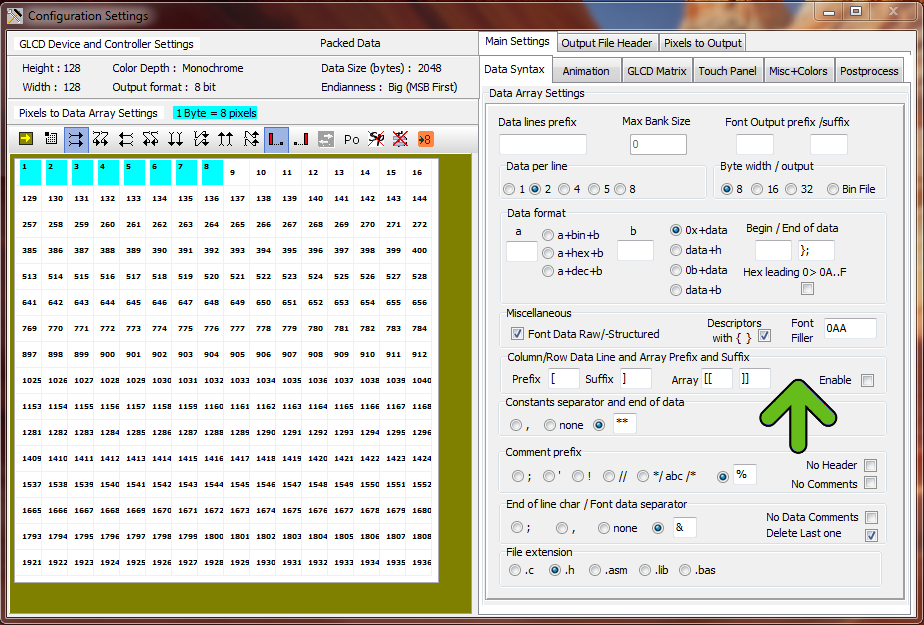
Data of one display line of pixels (direction can be either in colums or in rows) can be separate in a sub array (green arrow)

Example of this kind of data output   (Checkbox enabled must be set )

[[    — Array prefix example

[data for line 1]

[data for line 2]

[data for line n]

]]  — Array suffix example


Bitmap2LCD Configuration Settings Python

Bitmap2LCD File Explorer : Filter Settings

Bitmap2LCD is a tool for programming small Graphic LCDs in embedded systems.

File Explorer : Filter Settings

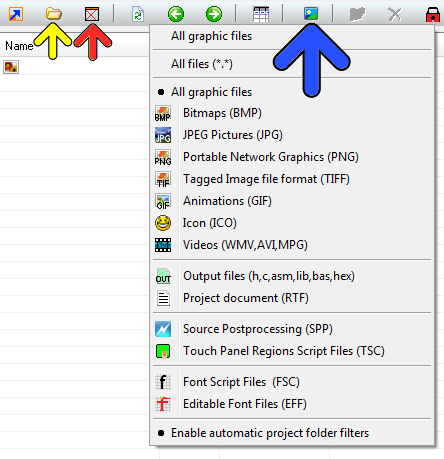
In the file explorer, you can show/hide the folders in the list (yellow arrow) , Show all files or only the files made today (red arrow) and filter the list by their extension and type (blue arrow) and the panel below the blue arrow.

The filter status can be seen in the file count string which is shown in the statusbar at the right at the top of the window .

Bitmap2LCD Explorer filters