Author Archives: Bernie

Bitmap2LCD : Text Processing Functions

Bitmap2LCD is a tool for programming small Graphic LCDs in embedded systems and a programmable graphic and text processing tool.

From Bitmap2LCD V2.9 and upwards

Bitmap2LCD : Text Processing Functions

Note : Additional Processing functions will be implemented in the future

The batch conditions and functions listed below, are available for programaticaly modifying the text editor content. A condition block (IF.. / WHILE..) can be followed by one or more functions (THEN..) A single condition block applies from the first to the last line to the whole text editor content. Next condition block again applies to the whole editor content…

Internal Batch System Variables

The batch system has internal variables holding informations such as :

Internal Index : The char index (or position) in the text editor line, where a ‘text’ or an other data has been found. This internal index can be used in a following ‘then’ function by letting ‘index’ as it is next to the function (= no index number)

Internal Text Buffer : A text buffer where lines can be copied to

Current Hex Value : The last Hex value found for example by the get hex function

Hex Length Value : The Length of a hexadecimal value

Current Integer Value : The last Integer value found for example by the get integer function

Current Float Value : The last floating point value value found for example by the get float  function

Current Flag : A boolean status flag ( True or false )


Undefined Conditions

if unconditional

Unconditionally Set condition = True , execute list of functions on any text editor line

Hexadecimal Conditions and Functions

if hex in line           

Condition = True when a hex string (as user defined in the configuration settings ) is found in the line ( A hex value is defined by its prefix or suffix  ( for example prefix like 0x or $ or a suffix like h

while hex in line

Condition is and remains true while a hex value is found in the line, usefull for example, in a line of 16 hex values.


then get hex (index)

If condition was True, gets the hex value specified by index ( first hex value index being index = 0 )  Internal Index variable holds the char index where the hex value has been found.


then insert hex (index)

If condition was True, Inserts the current hex value in string on position specified by index.
If no numeric index specified, inserts hex on Internal Index value.


then overwrite hex

If condition was True, overwrites the current hex value in string on position on current index position.


Text and  Conditions and Functions


if ‘text’           

Condition = True when the defined string under ‘text’ is found in the line

Internal Index variable holds the index where ‘text’  has been found.


if not ‘text’           

Condition = True when the defined string under ‘text’ wasn’t found in the line


while ‘text’           

Condition is and remains true while the defined string under ‘text’ is found in the line

Remark : The defined ‘text’ might be deleted or modified in a function afterwards to prevent a loop without end.


and ‘text’  ,  and not ‘text’ ,  or ‘text’ ,  or not ‘text’  

self speaking conditions, to extend if conditions


then overwrite (index) ‘text’

If condition was True, overwrites text editor line from index position with specified ‘text’

Uses internal index value if index was’nt specified


then insert (index) ‘text’

If condition was True, inserts in text editor line from index position the specified ‘text’

Uses internal index value if index was’nt specified


then remove ‘text’

If condition was True, removes in the text editor line, the specified ‘text’


then delete until ‘text’

If condition was True, deletes chars in the text editor line from the internal index position to the position of ‘text’


Line Number Conditions and Functions

if line number (index)

Condition = True if line number of text editor has been reached


if last line

Condition = True if last line of text editor has been reached


then delete line

If condition was True, deltes the current text editor line


then next line

If condition was True, jumps to the next line of text editor


then insert line

If condition was True, inserts a line at current line of text editor


Flag Conditions and Functions

if flag           

Condition = True when flag was previously set


if not flag           

Condition = True when flag was’nt previously set

then set flag

If condition was True, gets then sets the flag

then set flag

If condition was True, then clears the flag

and flag  ,  and not flag ,  or flag ,  or not flag  

self speaking conditions, to extend if conditions


Other Conditions and Functions

then save as ‘file’

If condition was True, then copies the content of the text editor as it is now to a filename defined under ‘filein the user defined Output Files Path ( Note : No path or folder allowed in ‘file’ )

then start delete

If condition was True, then sets a start of deletion flag at current text editor line

then stop delete

If condition was True, then , if start delete has been found upwards in the text editor, deletes all the lines from Start to Stop delete position.

then start copy

If condition was True, then sets a start of copy flag at current text editor line

then stop copy

If condition was True, then , if start copy has been found upwards in the text editor, copies  all the lines from start to stop copy position to the internal text buffer

then save copy as ‘file’

If condition was True, then copies the content of the internal text buffer to a filename defined under ‘filein the user defined Output Files Path ( Note : No path or folder allowed in ‘file’ )


then load and insert ‘file’

If condition was True, then loads an external text file defined under ‘file‘ located in the user defined Output Files Path and inserts the  text into the text editor ( Note : No path or folder allowed in ‘file’ )


Convert Multiple Bitmap Files into Data in one run

Bitmap2LCD is a tool for programming small Graphic LCDs in embedded systems and a programmable graphic and text processing tool.

Update > From Bitmap2LCD V4.5a

Convert Multiple Bitmap, JPG or PNG Files into Data files in one run

Important : Not available for conversions to monochrome !

Bitmap2LCD can in one single run, load all files of the defined graphic type located in a defined folder, convert them to GLCD data and save them in a sub directory of the defined batch source folder.

Create a new folder for the graphic source files. For example …\Pictures\Batch and copy all the graphic source files to convert into this \batch subfolder.

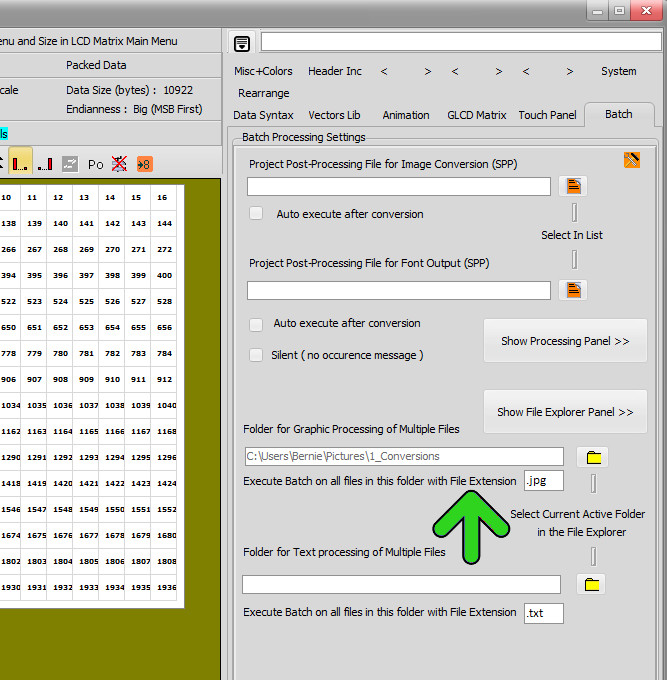
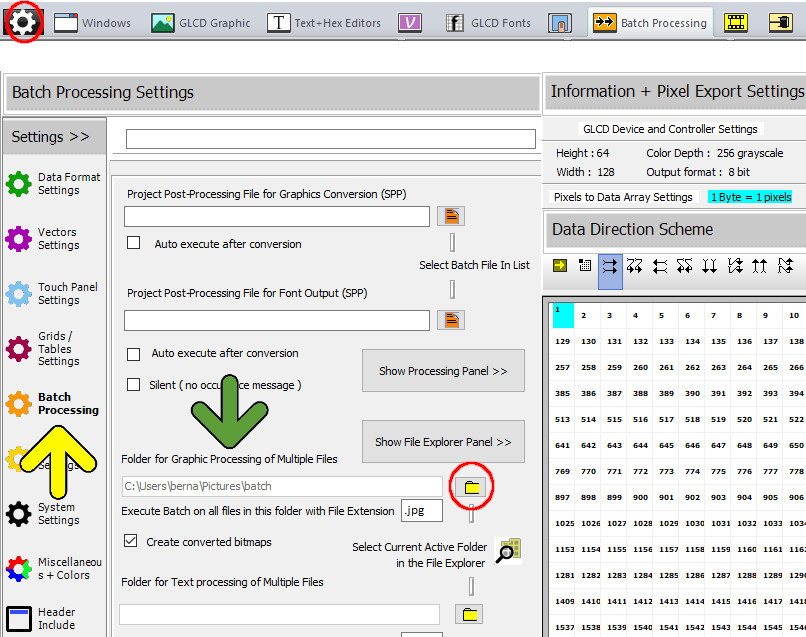
In the Configuration Settings Panel (yellow arrow), prepare the settings (green arrow)

The current selected folder in the File explorer, will be defined in the Folder field by clicking the yellow folder button (red circle) Then define the source Files extension as JPG or PNG or BMP …

If you want converted bitmaps then check then Create converted bitmaps checkbox.

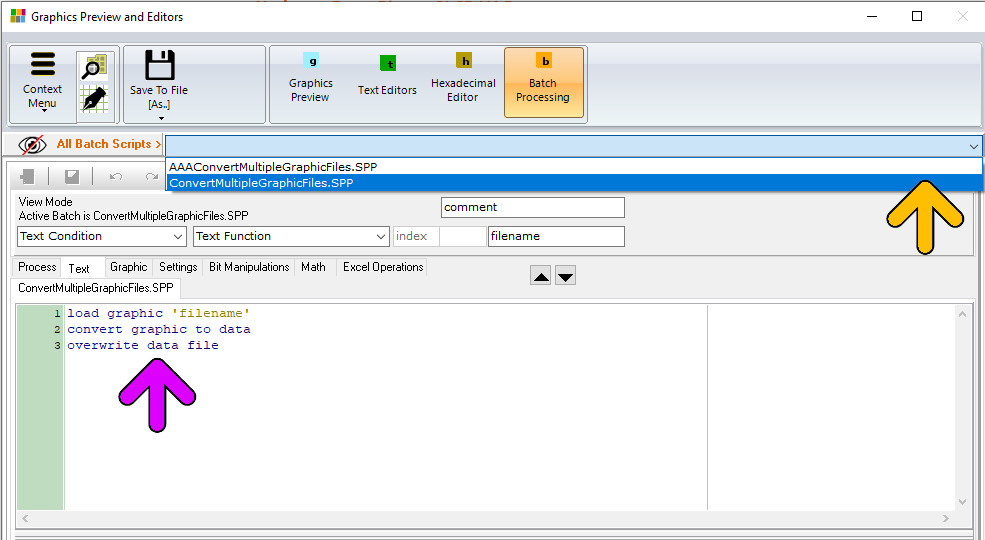
This Batch processing Program is preexists. Click at the right of the All Batch Scripts Bar (orange arrow) and select ConvertMultipleGraphicFiles.SPP.

The Batch program appears in the edit area (Purple arrow)

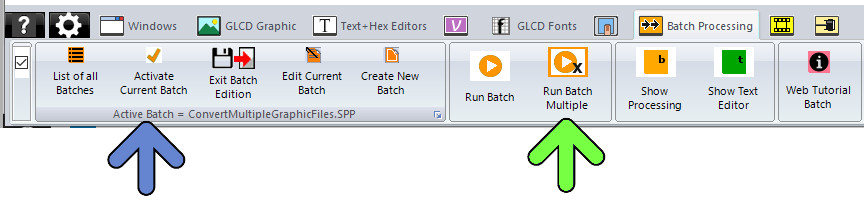
In the Batch Processing Main menu, you can Activate the current Batch (blue arrow) and see the activated batch Active batch = name.SPP

Run Batch Multiple will start the batch processing (green arrow)

Run the process and wait.

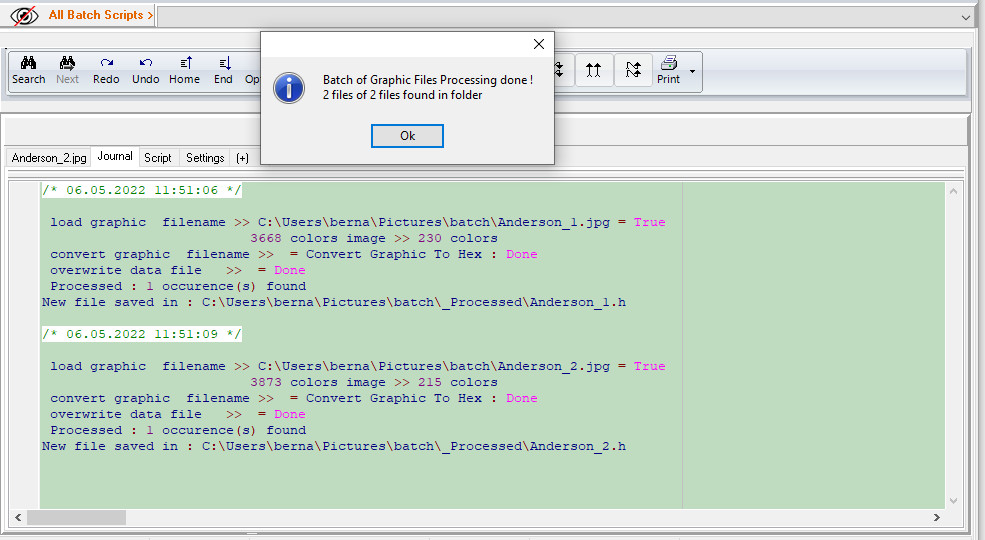
When the processing journal appears, the batch processing has been completed.

The output files can be found in the …\batch\_processed folder

Older Bitmap2LCD versions

A mouse right click inside the programming field will show you a pop up menu !

  • Do not forget to activate this batch ( check active processing batch is… label )
  • Define source folder of all the graphic files in the settings ( see 2nd screenshot below )
  • Check/modify the Work canvas size, in this example, all source bitmaps will be resized to canvas size !
  • Check/modify the normal data output format settings
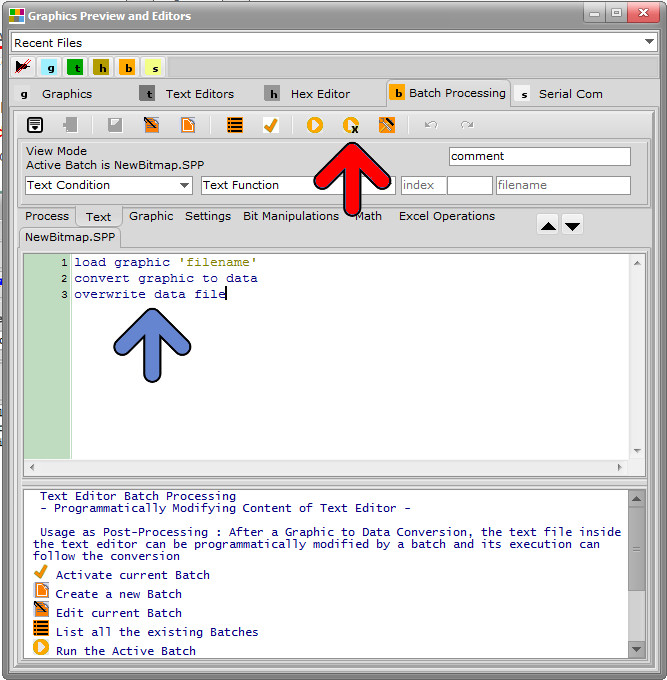
  • Start the processing ( red arrow )
  • Read the processing report
  • bitmap2lcd graphic files batch

From Bitmap2LCD V3.7

Buttons have been moved to the the main Menu

bitmap2lcd-batch-processing-menu
  • Select the batch for multiple files processing in the configuration settings -> Batch Tab and define the currently active folder in the file explorer as the “Folder for Graphic Processing of Multiple Files” Folder.
  • The converted Output files will be saved during the process to the above defined source files folder + sub-folder \processed
  • Also check/modify the Graphic File Extension field. (green Arrow)
  • bitmap2lcd graphic files batch settings

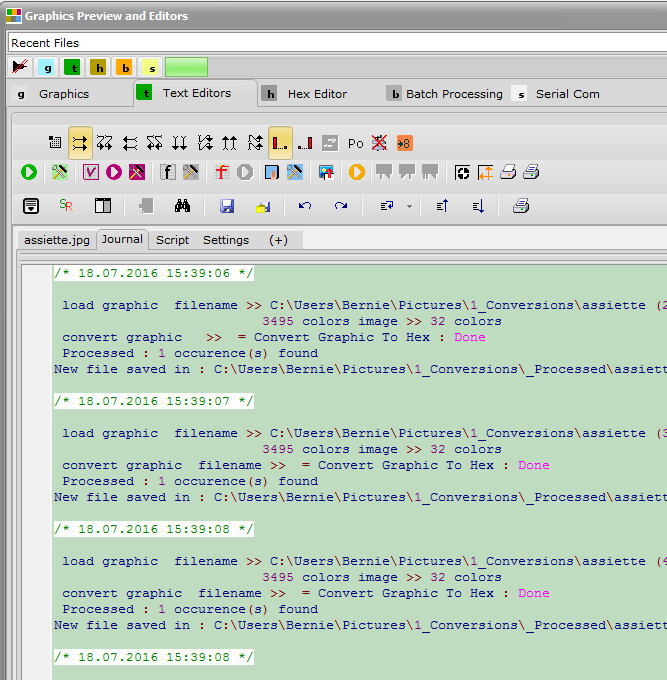
At the end of the processing run, you can read the processing report as shown below.

In the example below, color bitmaps are converted to 16 level grayscale

bitmap2lcd graphic files batch report

Bitmap2LCD : Batch Programming

Bitmap2LCD is a tool for programming small Graphic LCDs in embedded systems and a programmable graphic and text processing tool.

From Bitmap2LCD V2.9 and upwards, article update V3.6h

Note : Additional Processing functions will be implemented in the future

Bitmap2LCD : Batch Programming

A batch program is a set of conditions, functions etc… one per line.

The program can’t be edited directly by writing texts. Any action must be made inside the field indicated by the red and green arrows. Cursor is a highlighted line. Cursor moves are made using keyboard up and down keys or by clicking on the destination program line.

  • Use the tabs to browse the group of basic functions ( Blue arrow )
  • Use the Comboboxes to select and program the condition/setting or function. ( red arrows ) In the Edit Mode, insert the selected function as next to the current cursor position with return key.
  • Use the Edit fields ( green arrow ) to edit a constant like an index (numeric), a text (chars) or a comment (chars)
  • Call the pop-up menu ( purple arrow ) by clicking the right mouse key inside the white program field.
  • Move up or down a program function with the up and down buttons ( gray arrow ) or use alternative CTRL+UP and CTRL+DOWN key combination
  • Next to the gray arrow, a label indicates the current View or Edit mode : A Batch can only be modified in Edit Mode

bitmap2lcd Batch Programming_2

Update V3.7c

Buttons have been moved into the main menu !

bitmap2lcd-batch-processing-menu

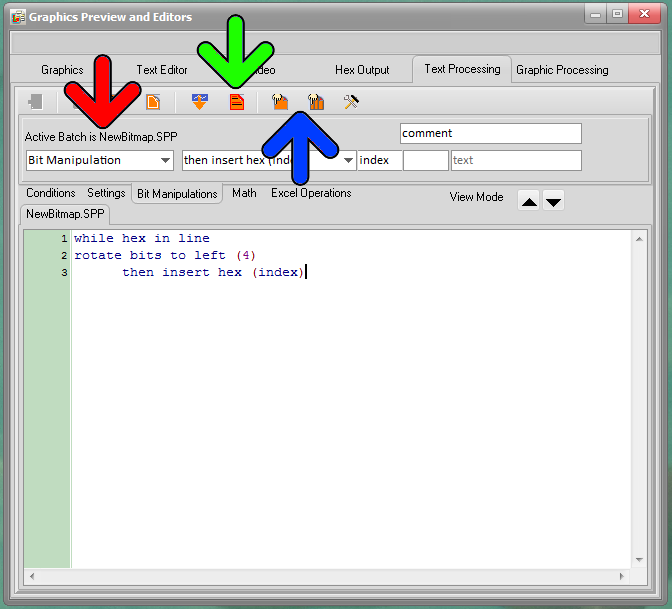
To start a batch processing, it must be active ( red arrow ) ( You can have many batch programs on disk to choose from )

Activating a batch can be made with a button ( green arrow ) or by clicking an item in the pop-up menu (Right Mouse click)

A batch processing can be started with two buttons : ( blue arrow ) A single processing (left side of blue arrow) or a processing on multiple files located in a defined folder (right side of blue arrow ). A processing can also be started in the Batch Processing main menu.

Batch Processing files ( .SPP  ) are always located in the defined Project Output Files folder. To view a list the batches on disk, click on the list batch button or use the pop up menu item.

Bitmap2LCD : Graphic Processing Functions

Bitmap2LCD is a tool for programming small Graphic LCDs in embedded systems and a programmable graphic and text processing tool.

From Bitmap2LCD V2.9 and upwards , article update V3.6h

Bitmap2LCD : Graphic Processing Functions

Note : Additional Processing functions will be implemented in the future


load graphic ‘filename’           

Loads the defined graphic defined under filename in the Graphics Library Folder into the Work Canvas, converts the graphic to the configured graphic mode. ( grayscale,color ) No directory allowed under ‘filename‘ !

For multiple graphic file processing , there must not be a filename defined :  ‘filename’

convert graphic to hex

Converts the work Canvas to a Data Array inside the Text Editor

overwrite text file

Saves or Overwrites (without prompt if already exists) the text file with the text Editor Content. Filename is the same as the graphic source file name with configured data file extension, and is saved in the defined output files folder.

For multiple file processing , the output files are saved in a subdirectory of the graphic files source folder


Bitmap2LCD : Introducing The Programmable Graphic Processing

Bitmap2LCD is a tool for programming small Graphic LCDs in embedded systems and a programmable graphic and text processing tool.

Bitmap2LCD : Introducing The Programmable Graphic Processing

From Bitmap2LCD V2.9 and up to V3.0, then obsolete

( from V3.0+ these functions have been moved inside the single batch processing feature

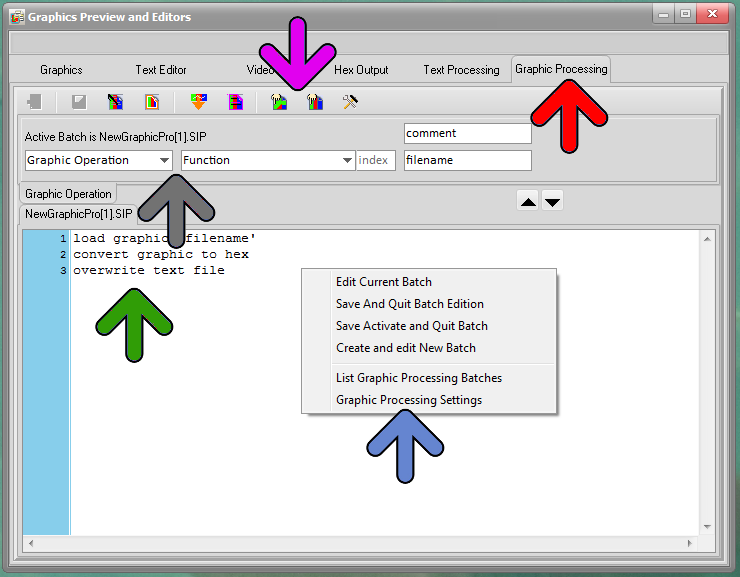
The Graphic Processing Panel can be found in the Graphics Preview and Editors Window, by clicking the Graphic Processing Tab (red arrow)

The program field (green arrow) can’t be directly edited as text : The selection of functions and the edition of values and characters can only be done in the programming panel (gray arrow)

In the bar of icons (purple arrow) and the pop-up menu (blue arrow) (accessible by a right click) , you can edit a batch, activate a batch, list all existing processing batches and select one, The two icons pointed by the purple arrow are the Processing Start buttons : The left one starts a single Processing Pass, the right one starts the processing on multiple files, located in a selected folder.

A Graphic Processing Batch file has a .SIP extension

Batch Graphic Processing_1


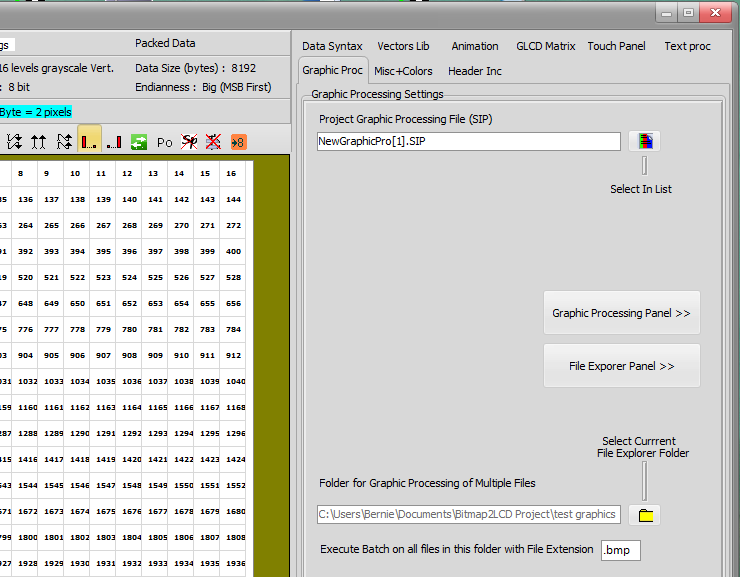
The graphic processing settings are located in the Settings Window Graphic Proc Tab

There are the fields to define the batch in the list (at the top) and the source folder where the multiple files to process are located and their graphic extension (for example .bmp)

Note : To define this source folder, first select the folder in the file explorer and then click the yellow button below. The output files of a multiple file processing batch will be saved in a sub folder of the defined folder.

If not programmatically modified, the current main settings like color/grayscale the data output format and other settings are active when running the processing.

Batch Graphic Processing_2

Text Processing Example : Modify a Hex value on every source code line

Bitmap2LCD is a tool for programming small Graphic LCDs in embedded systems and a programmable text processing tool.

Text Processing Batch Example

Target : Modifying a Hex value on every source code line

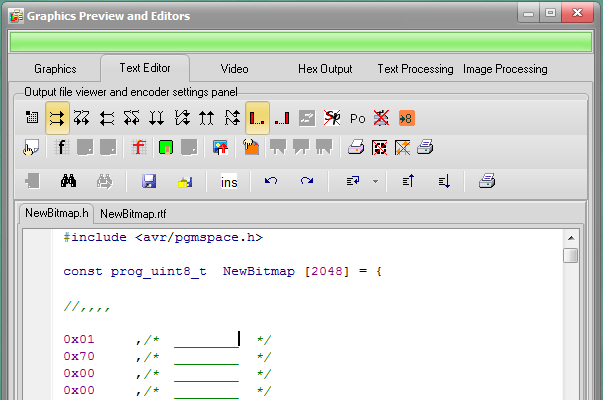
  • Convert an image to code : The code array then is visible in the Text editor ( see below )

Example here see the two first hex values : 0x01 and 0x70

Bitmap2LCD Batch Text Processing 1


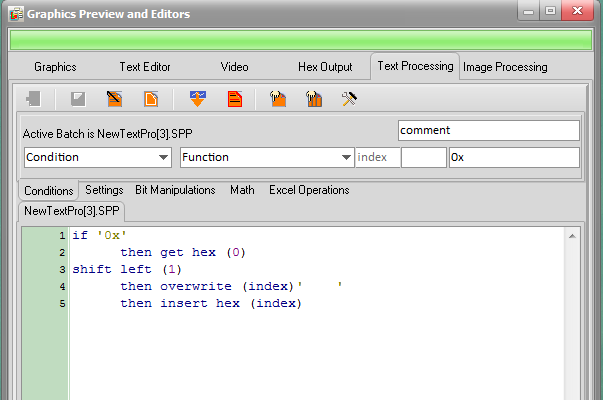
In the Text Processing Window, create a new batch and write this program, using the choice comboboxes and the editors located upwards the program lines :

Bitmap2LCD Batch Text Processing 2

if ‘0x’
      then get hex (0)                         –> Hex value prefix is already 0x in the configuration settings
shift left (1)
      then overwrite (index)’    ‘    –> 4 x space inside the string
      then insert hex (index)

Remark : Everything between two “if conditions” is one block of functions for this “if condition” !

On every text editor line, checks if ‘0x’ is found and if condition is “true”, gets the first hex value (index 0) , shifts left  the hex value of 1 bit to the left , overwrites source from the index where the ‘0x’ was found with four space chars,  and finally inserts the shifted hex value at the index position…

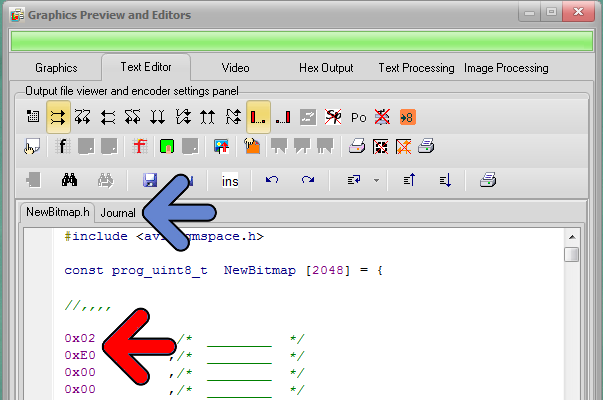
Activate the new batch and run it over the text editor.

Bitmap2LCD Batch Text Processing 3

The source file in the Text Editor has been modified (red arrow)

You can read the processing report journal (blue arrow)


Bitmap2LCD : General info about Configuration Settings

Bitmap2LCD is a tool for programming small Graphic LCDs in embedded systems and a programmable text processing tool.

Bitmap2LCD : General info about Configuration Settings

OBSOLETE Article : For older versions

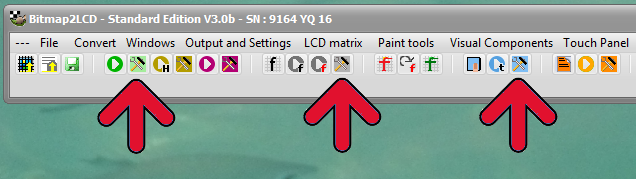
To open the various configuration settings Panel, click one of the button in the main form (red arrows)

Bitmap2lcd_Config Settings

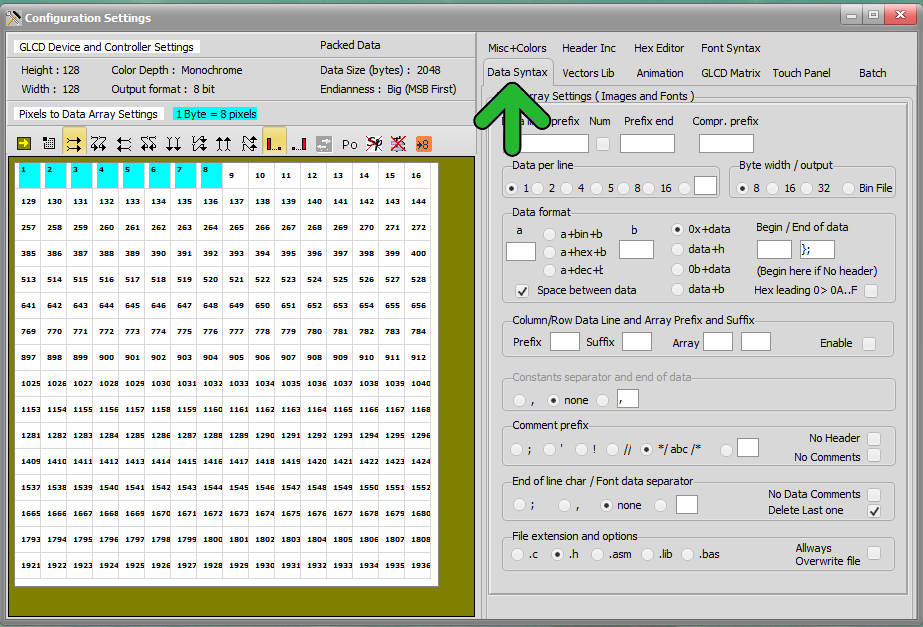
At the right side, you can define the data syntax (green arrow) and the access the output file header (red arrow)

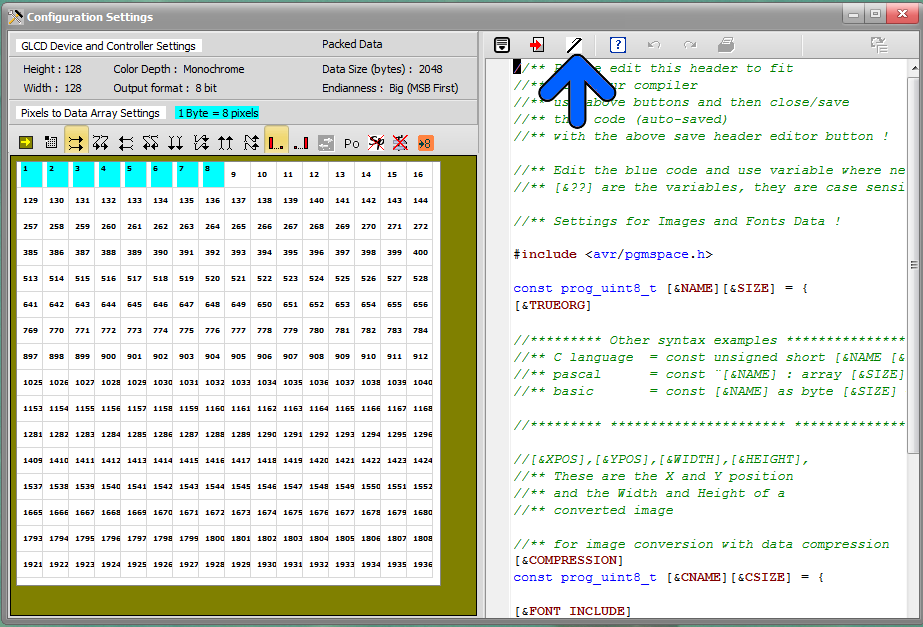
To edit the header, click on the top right button (blue arrow)

bitmap2lcd Configuration Settings

bitmap2lcd Header Settings


A set of configuration settings can be saved as a project , for example in the case you manage different projects and different Graphic LCD

Bitmap2lcd Project Folders


Switching OFF the Internal Web Browser

Bitmap2LCD is a tool for programming small Graphic LCDs in embedded systems and a programmable text processing tool.

Switching OFF the Internal Web Browser

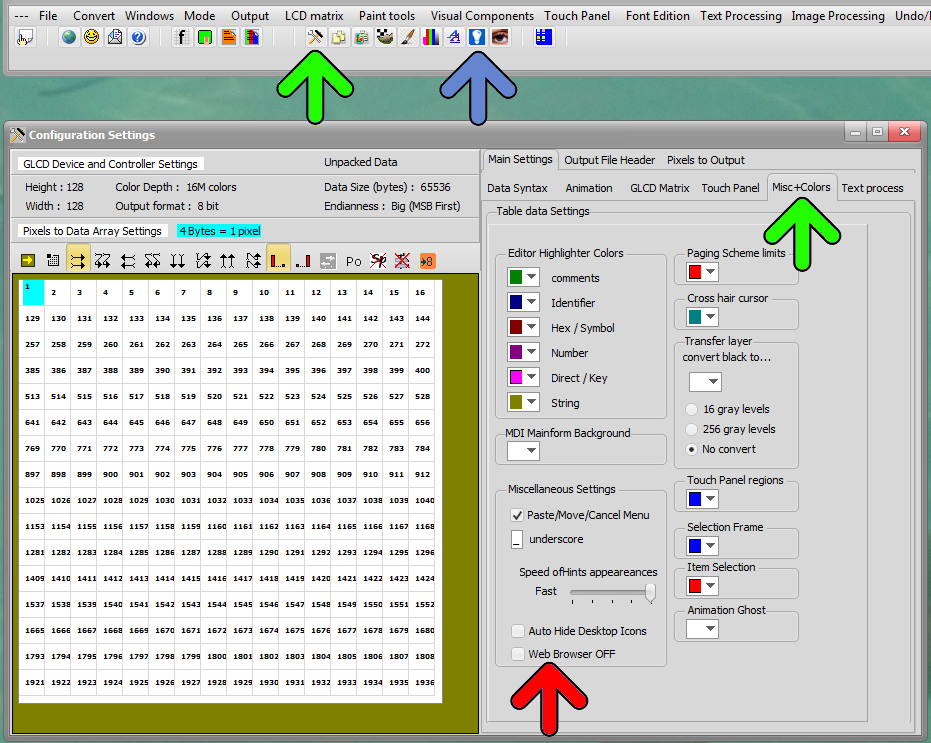
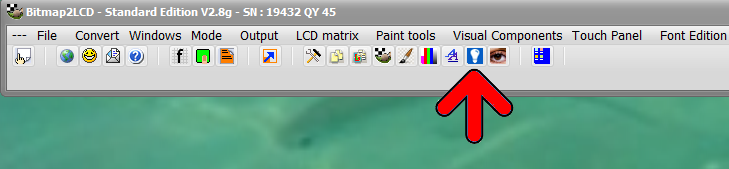
From Version V2.8H (B2) the internal Help Web Browser (blue arrow) , to access to the online tutorials can be enabled or disabled (red Arrow) in the configuration panel (green arrows)

Of course, you can use your own favorite web browser to access the help topics and tutorials !

Please note that this feature needs to have the Microsoft Internet Explorer installed on the computer. It’s for Bitmap2LCD’s internal use. In case IE can’t be found, the internal Help Web browser will permanently be switched OFF.

bitmap2lcd Internal Web Browser Disable

How to Use Bitmap2CLD ? (before Version 3.0)

Obsolete article !


Link for Versions V3.0+

For a quick access to the help and tutorials, click the following button in the main menu

bitmap2lcd_tuto_0

 A short tutorial

Bitmap2LCD is a tool for programming small Graphic LCDs in embedded systems and a programmable text processing tool.

The Windows

bitmap2lcd_tuto_2

Bitmap2LCD is a multi-window application and supports dual screen.

List of the windows : Main window, LCD Viewer, Configuration Settings, File explorer, Graphic and Editors Window, Tool menu, Work Canvas, Adjustments, Font Panel and internal Web browser.

You can show or hide (minimize) the windows and move them to the secundary monitor.

The above arrow  shows where to open and show these windows


Projects, Artworks and Filenames

A project is a set of configuration settings ( There are many possible settings ! )

If you work on different GLCD projects, you can save the “current” settings inside a Project name. It’s the easiest and fastest way to switch from one to another.

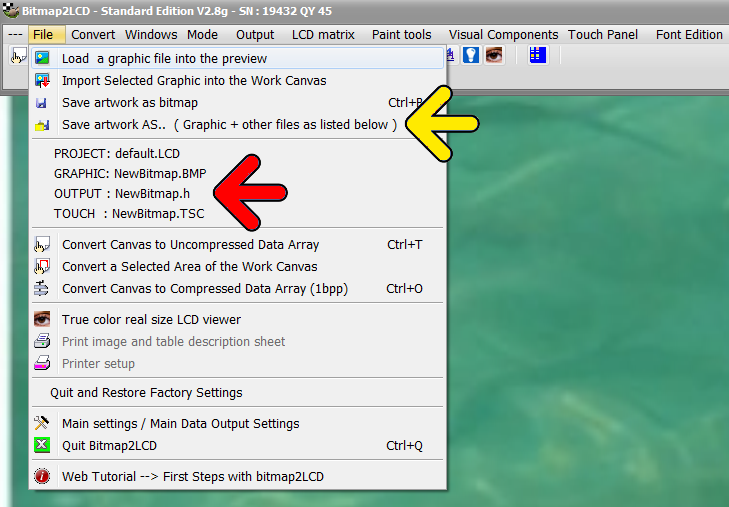
A so called “artwork” is a set of files related to the graphic filename : In the below example a graphic saved for example as NewBitmap.BMP , will be converted to an output file called NewBitmap.h , and the associated touch panel file will then be named NewBitmap.TSC (Red Arrow)  

When you save your “artworkAS (yellow arrow), as a bitmap,  you will change the basic filenames

bitmap2lcd_tuto_1


Load a graphic


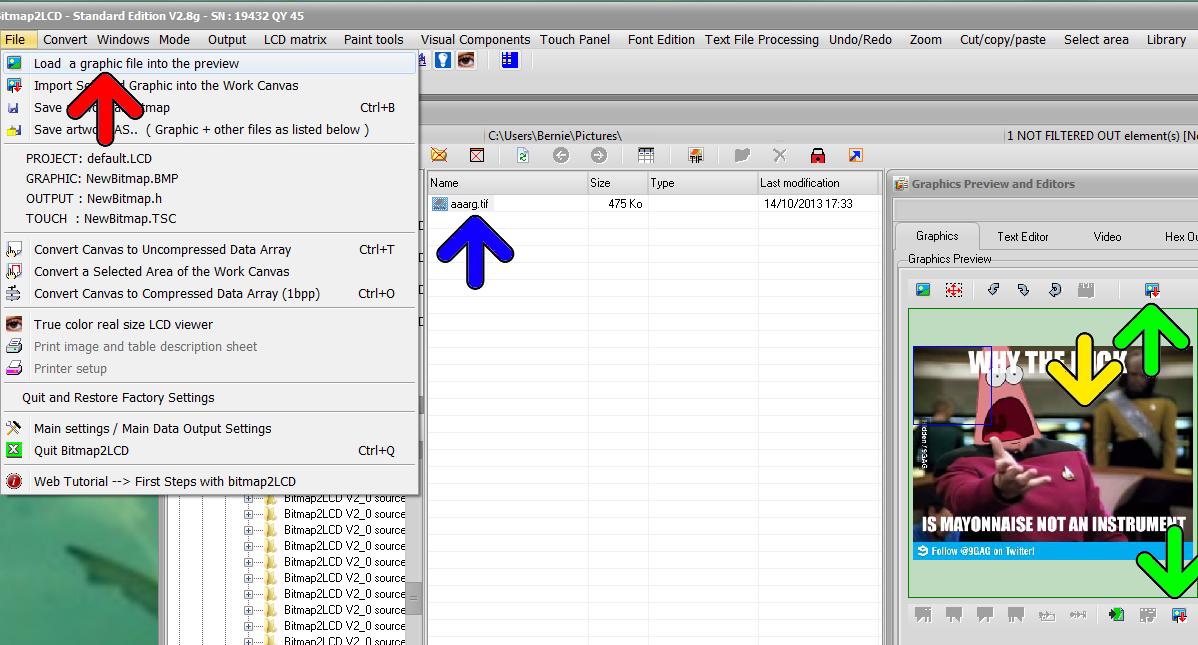
  • You can either use the direct graphic load by dialog located at the top of main menu File

or

  • switch to the file explorer / or click Load graphic File in main menu File (fig1. red arrow)
  • In the list of files, click to select your particular graphic file you want to load (fig1 blue arrow) , it appears in the graphics viewer window at the right side.
  • Resize or turn/tilt the preview image using the buttons located at the top of the graphic preview.
  • Double click in the graphics viewer (yellow arrow) or the click the import button located at the top or bottom of the preview (fig1. Green arrow)

bitmap2lcd_tuto_3

fig1. File explorer view

If the graphic is larger than the Work Canvas a message box will ask you if you want resize the image to fit the canvas or not.

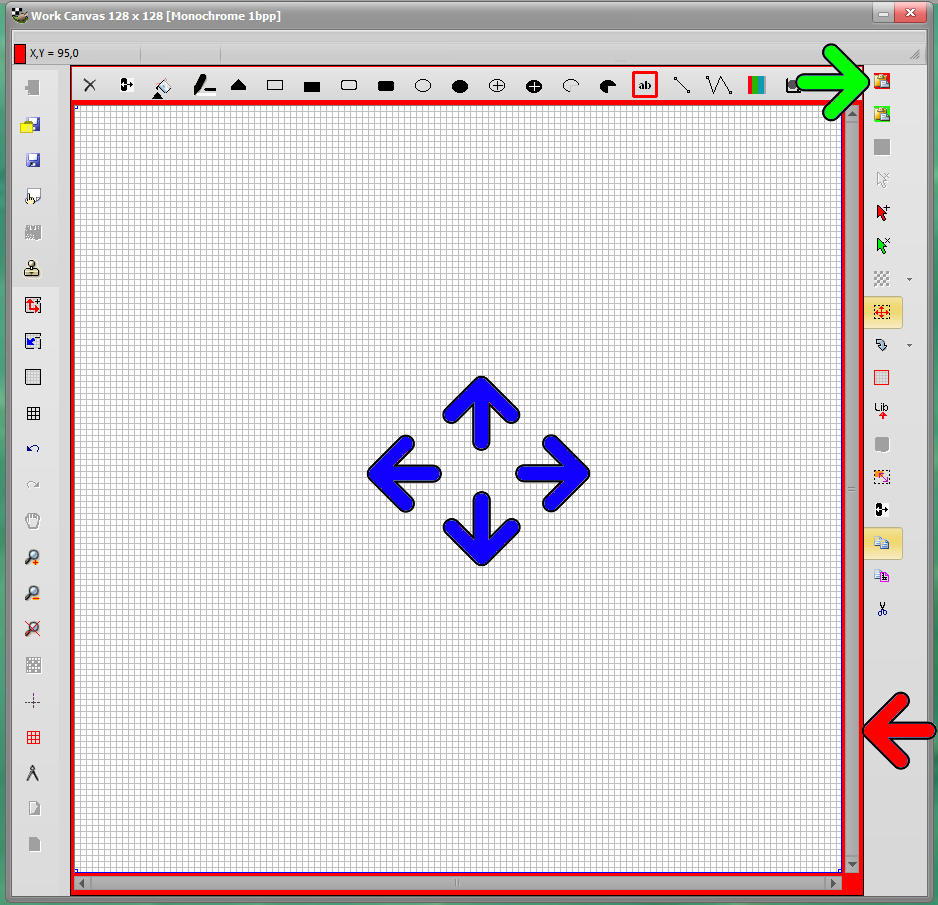
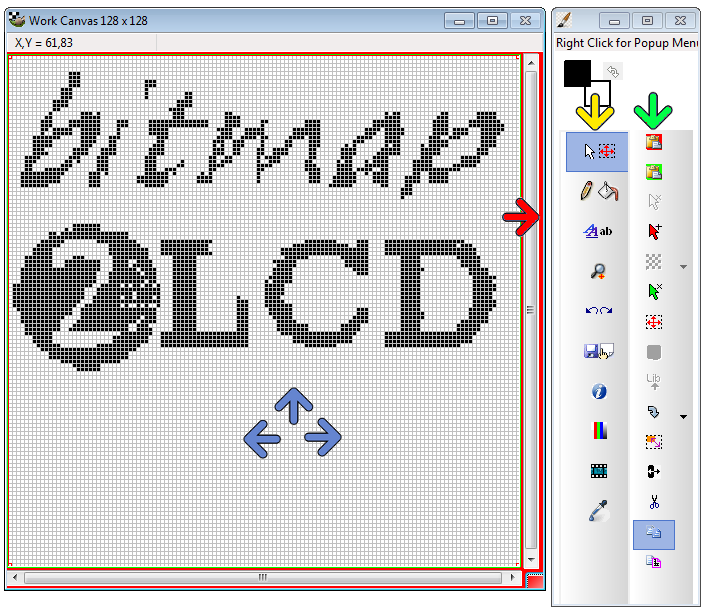
The graphic will be imported in the selection layer not directly into the Work Canvas (fig2. imagine your own graphic inside the canvas)

The red frame (fig2. red arrow) around the canvas means that you will have to paste the graphic into the canvas after moving it, convert it. When outline frame is red, it means that a “floating ” selection layer above the canvas is displayed…

The imported graphic can be moved around above the Work canvas : Move/drag the red frame to the desired canvas location with the left mouse button pressed. (fig2. blue arrows)

Then Paste the selection layer (fig2. green arrow) The red frame in the frame and around the work canvas dissapears. (There are also other ways to Paste, in menus, using the return key etc..)

bitmap2lcd_tuto_5


fig2. Import a graphic file


Converting a bitmap to GLCD data.

bitmap2lcd_tuto_4

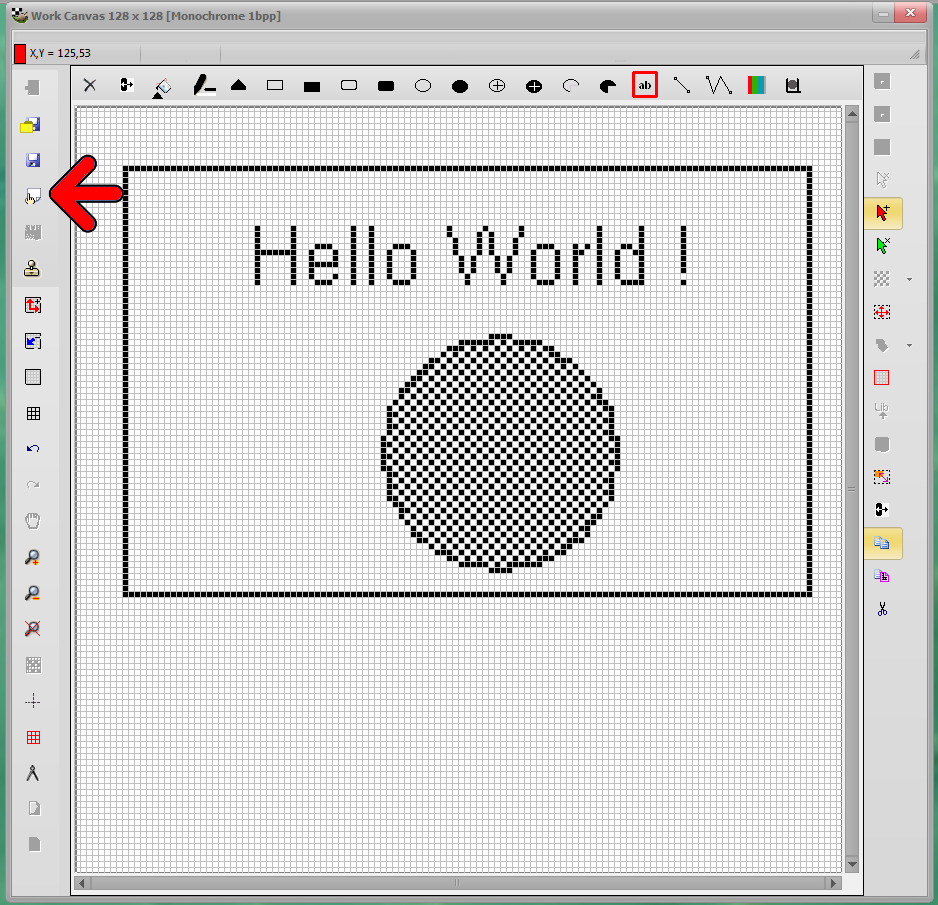
Start a conversion (fig3. red arrow)

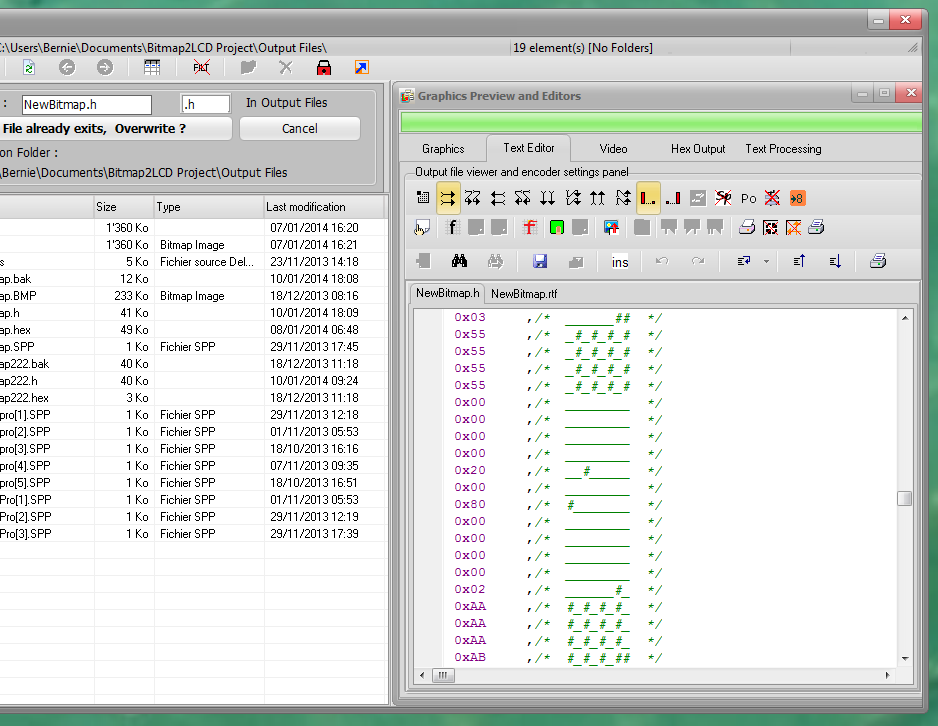
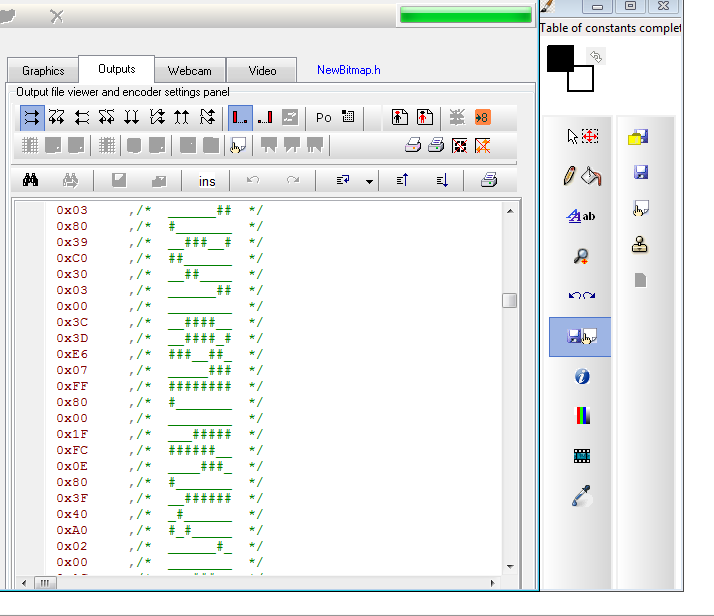
Your hexadecimal file appears in the outputs editor, formatted according to the defined configuration settings. (fig4)

bitmap2lcd_tuto_6


Fig 4 Bitmap has been converted to the Hexadecimal, decimal or binary  file in the text editor.


Color picker

Bitmap2LCD has built in functions wich are very similar to the popular MS Paint program

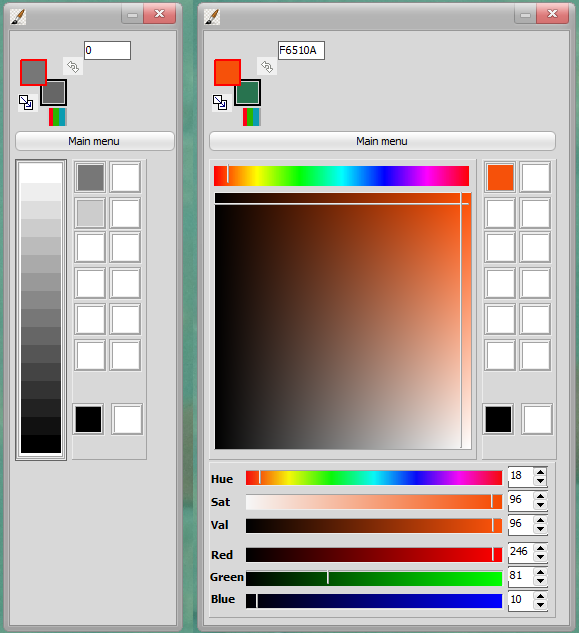
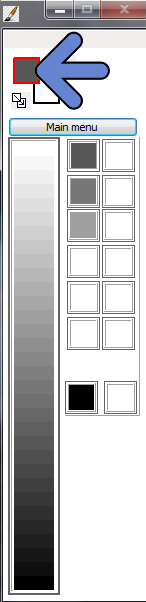
You can select the foreground (pen color) and background colors (brush color) for painting and writing text by clicking in the color boxes of the menu window.

You can copy foreground color to background colors or swap them when clicking in the small boxes around the colors boxes.

bitmap2lcd colorpickers


Fig 5 The Colorpicker ( Here the 16 gray levels mode and the Color mode pickers)


Drawing tools

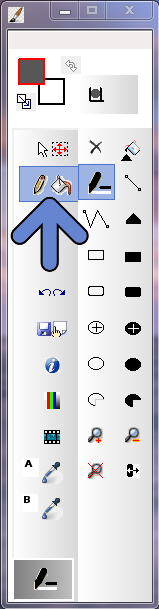
In the main menu window or at the top of the work canvas , you can access the various drawing tools (also accessible from the main menu)

The main menu is located at the right side (arrow) and the sub-menu at the right side.

drawing tools

Fig 6 drawing tools

Write a text

There are 2 different ways to write text inside the work canvas :

  • The Text Field Editor located in the Visual Components Main menu
  • The single line editor described below

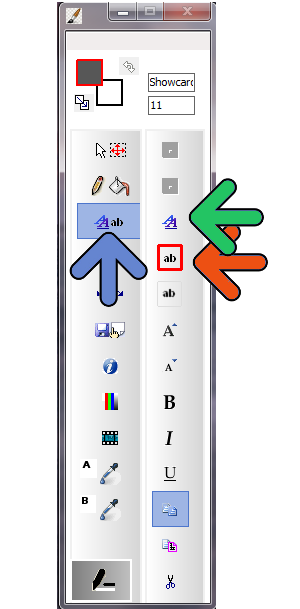
In the “write text” submenu, you can open the font window (green arrow) and write text in the work canvas : first click the button (orange arrow) and click inside the work canvas where to open a new text area.

Bitmap2LCD write text

Fig 7  Fonts and draw a text


Find the Configuration Settings

bitmap2lcd_tuto_7

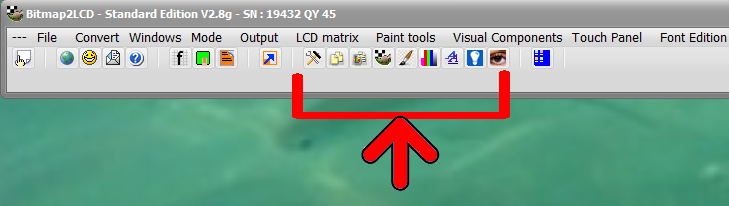
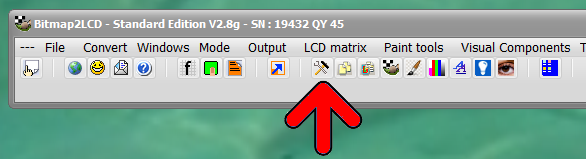
The configuration settings for the conversion are accessible from the main toolbar : Visit then main the menu items , Mode , LCD matrix , Output and the configuration settings window (arrow)


Bitmap2LCD : Running a Processing Batch

Bitmap2LCD is a tool for programming small Graphic LCDs in embedded systems and a programmable text processing tool.

Running Processing Batch run runx

Article updated for V3.7c

There a many ways to run a Processing Batch :

  • Loading a Batch Program file into the text editor, start the active text processing batch for a single run run
  • Manually running a batch after conversion of a GLCD image or after conversion of a GLCD font, data being present in the text editor.
  • Chain an automatic post-processing after every image or font conversion.
  • Running a Processing batch on multiple defined files in a defined folder runx

The active batch (blue arrow) will be started in case of “manual” starts

bitmap2lcd-batch-processing-menu_2

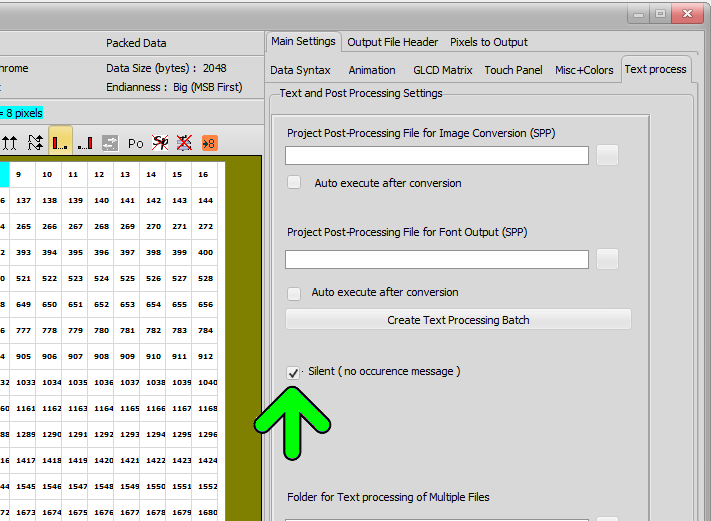
if the Silent checkbox is checked (green arrow fig 2) , the message on screen with the number of processing occurrences found at the end of the text processing will not be displayed. ( Not needed in case of multiple file text processing )

Bitmap2CLD Running Text Processing 2

fig 2)